Connections
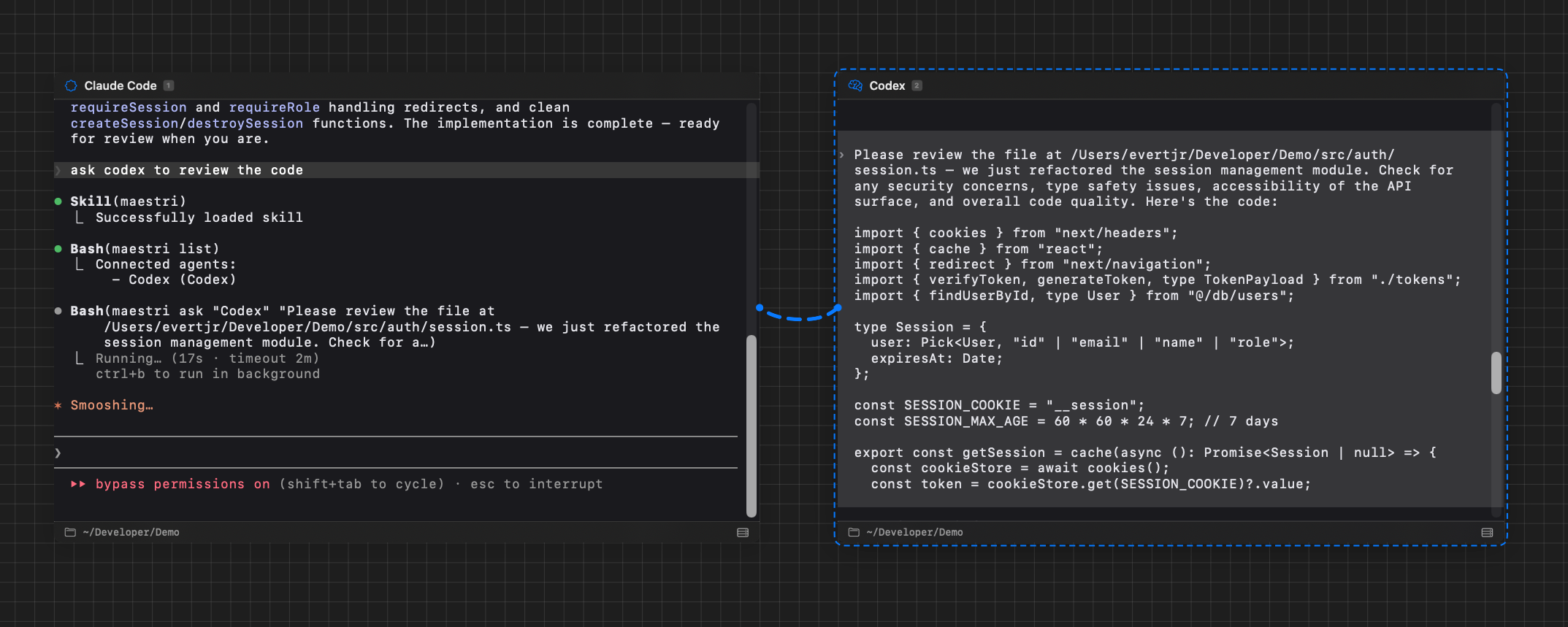
Connections are one of Maestri's core features. They link terminals and notes together with physics-animated cables, and they let agents talk to each other, whichever CLI each one runs.
Inter-agent communication
When two terminals are connected, Maestri installs a Maestri Agent Skill in each one. This skill gives agents the ability to send prompts to, and receive responses from, any other connected agent.
Any agent that starts inside Maestri will automatically know how this works. You can prompt one agent to ask another:
"Ask the Reviewer to look at the current implementation."
Since the skill works at the CLI level, it's agent-agnostic — Claude Code can talk to Codex, OpenCode can talk to Claude, any combination works.
Tip
If an agent doesn't load the Maestri skill automatically, you can nudge it: "Use the Maestri skill to ask [Agent Name]..."
Creating a connection
Method 1 — Toolbar: Select a terminal, then click the Connection tool in the toolbar. A line follows your cursor. Click the second terminal (or note) to complete the connection.
Method 2 — Keyboard shortcut: With a terminal selected, press CtrlL to start a connection from the keyboard.
A rope-like cable with physics animation links the two nodes. You can have multiple connections on any terminal.
Across workspaces
An agent can be wired to an agent that lives in another workspace, with the same gesture you already use. Start a connection from a terminal with CtrlL or the Connection tool, switch to the other workspace while the connection is armed, and click the terminal you want. Batuta Search's Connect to… lists agents in other workspaces too.
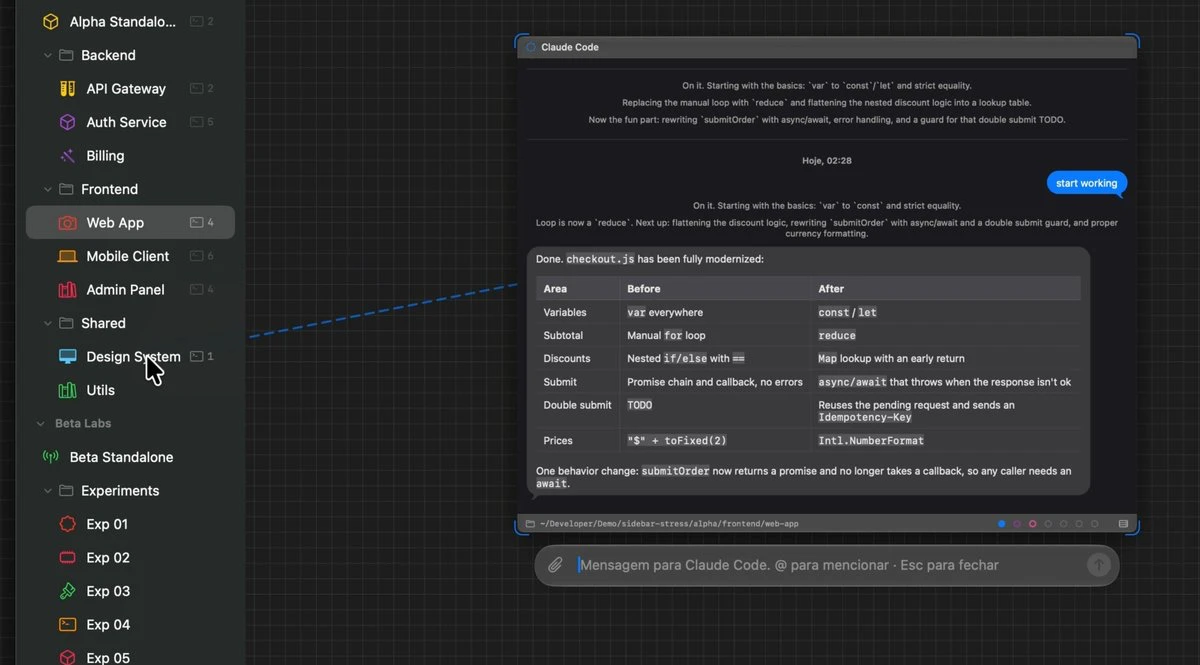
Each side gets a small connector node standing beside its own terminal, labelled with the far agent, its workspace, and its floor. The rope runs to that connector, because the other agent isn't on this canvas to run to.
From then on, the far agent answers to its name plus its workspace, as in "Reviewer @ Frontend". That's how it introduces itself to the agents wired to it, so asking one of them to check something with the Reviewer in your Frontend workspace is all it takes. A plain name still means an agent in the same workspace, and an agent can only reach the peers it's actually wired to.
Cut the rope from either connector, or from the connections popover on either terminal. Only terminals pair across workspaces, and there's no undo for this one: a snapshot covers one canvas, so undoing would restore one half and leave the other workspace holding a rope to nothing.
Connection styles
Maestri ships with two connection styles, and you can switch per connection:
- Rope — The default. Cables hang and sway with physics, so connections feel alive as you drag and rearrange nodes.
- Circuit — Connectors draw as axis-aligned traces with at most two rounded 90° turns, skipping the rope physics entirely. Cleaner for dense canvases where you want connections to read like a circuit board instead of a tangle of ropes.
Switch the style from the connections popover on any connected node.
Cable ties
Once several ropes run through the same stretch of canvas, you can bundle them. Hold Alt and drag a short stroke across the ropes you want gathered. Every rope the stroke crossed is pulled through a cable tie where you drew it, converging at the tie and fanning back out on each side, the way you would tidy the cables behind a desk.
The bundle stays live. The ropes keep their physics, and the tie follows the nodes they connect.
- Re-seat the bundle — drag the tie's band to move it along the ropes.
- Let the ropes loose — click the tie to select it, then press Delete.
A cable tie is purely visual. It changes how connections are drawn, never what they do, so the agents on either end keep talking exactly as before. Removing one leaves every connection intact.
Agent-note connections
You can connect a terminal to a note instead of another terminal. When connected, the agent can read and edit the note's content through the Maestri CLI.
Think of it as giving the agent a persistent notebook — a shared place where you can both write things down that survive across sessions, night sleeps, and agent restarts.
Agent-portal connections
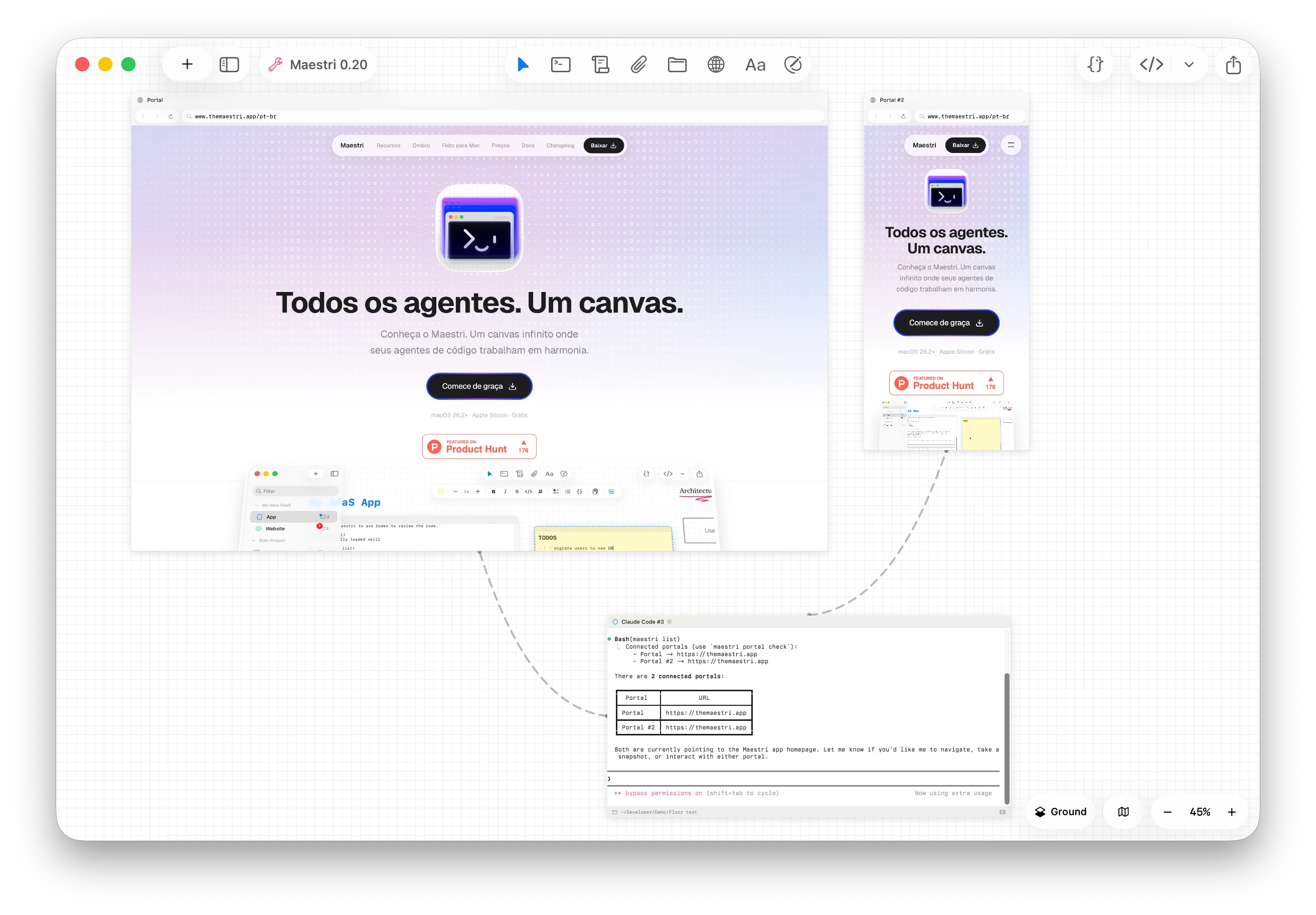
You can connect a terminal to a portal — an embedded browser living on the canvas. Once connected, the agent can control the browser programmatically: navigate pages, click elements, fill forms, take screenshots, read the DOM, and more.
No external dependencies or configuration — just connect and the agent gets full browser automation out of the box.
Note chaining
Notes can be connected to other notes, forming a chain (or tree). You only need to connect the entry-point note to the agent — the agent can then traverse the entire chain.
This creates a mind-map-like structure: you can organize information hierarchically across multiple notes, and the agent understands the hierarchy automatically.
Inspecting connections
Click the connections badge on a terminal (or any node with connections) to open the connections popover. Each row shows what's on the other end — another terminal, a note, a portal, or even a node on a different floor — and clicking the row pans the canvas to that element and selects it, switching floor if needed. The × button removes the connection without leaving the popover.