Floors
Floors let a whole team work in parallel on the same project without stepping on each other. Each floor is a canvas of its own with its own checkout of your repository, on its own branch, so you and your agents can build several features at once, review someone's pull request, or try a risky idea while Ground stays exactly as you left it. Floors work wherever your code lives: on your machine, or on an SSH, Docker or custom runtime workspace.
Why Floors?
When you're deep in a task and need to context-switch, maybe to fix a bug on another branch, review a PR, or try an experimental approach, you'd normally have to stash your work, switch branches, and later remember where you left off. With agents it's worse: two of them editing the same folder will trip over each other's changes.
A floor removes that friction. It gets its own terminals, its own branch and its own working tree, and when the work is ready you land it back on Ground, either by merging locally or by opening a pull request.
Works where your code lives
Floors follow your code. In an SSH, Docker or custom runtime workspace (custom runtimes on the Mac), the floor is created on that machine, right next to your project, and cloned copy-on-write when that machine's disk supports it. Everything else works the same: hooks, status, landing and pull requests. For a pull request, the branch is pushed from the workspace's machine, and the host's CLI runs on your computer with your own login (or on the workspace's machine, if you choose). See Environments.
How a floor holds your code
A floor is a git worktree of your project by default: a second checkout of the same repository, on a branch of its own. It shares your project's history, so its branch shows up in your IDE, on GitHub and everywhere else right away.
Copy-on-write
Where the disk supports it, Maestri doesn't check the floor out file by file. It clones Ground's files into the floor copy-on-write, then lets git rewrite only the files the floor's branch has different. That has two big consequences:
- It's instant and takes almost no space. A cloned file shares its storage with the original until one of them changes, so a floor of a large project costs next to nothing on disk.
- The floor starts ready to run. Dependencies like
node_modules, local settings like.envfiles, and even your uncommitted edits come along, so a dev server or a test run works on the new floor without reinstalling anything.
Build caches and outputs (.next, dist, build, target, DerivedData and similar) are skipped, so each floor builds fresh and parallel dev servers never corrupt each other's caches. You can add your own folders under Excluded folders when creating a floor. Submodule folders start empty, as a fresh checkout leaves them; run git submodule update --init on the floor when you need them.
Copy-on-write works on these filesystems:
| Where the project lives | Copy-on-write |
|---|---|
| Mac | APFS, the default on modern Macs |
| Linux, or an SSH, Docker or custom runtime workspace | btrfs, XFS and bcachefs (anything cp --reflink=always can clone), or APFS when the remote machine is a Mac |
| Windows | Not available. The floor is a plain checkout |
On any other disk the floor is still a worktree, just a plain checkout with only the files git tracks. Use a setup hook to install dependencies on those floors.
Independent copy
When you create a floor you can pick Independent copy instead of Git worktree. Maestri then clones the whole project, .git included, into a repository of its own, exactly as it is right now. Because it's separate, an independent copy can check out the same branch Ground is on, which a worktree can't. When you land it, its commits are fetched back into your project.
Independent copies need copy-on-write and a project with its own repository (a real .git folder, not a worktree itself). They're offered on the Mac on APFS and on Linux on a disk that supports copy-on-write, for projects on your own machine. Floors in SSH, Docker and custom runtime workspaces are always worktrees, cloned copy-on-write on that machine's disk just the same.
Creating a floor
Your floors show up in two places, and both get every feature: the floor overview, where the canvas opens up in 3D with a pill for each floor, and the sidebar, under each workspace. Use whichever suits you.
- Click the floor button in the bottom-right corner of the app, next to the minimap.
- The canvas repositions into a 3D space. Click New Floor.
- Give it a name (for example, "Fix login bug").
- With Repository isolation on, create a new branch or pick an existing one. Ground's current branch can't go to a worktree, since git allows a branch in only one checkout at a time. Turn it off for a floor that's just a separate canvas: its terminals work in the project folder, on Ground's branch. That works in any workspace.
- Optionally choose Independent copy over Git worktree, add Excluded folders, or enable Clone Ground layout to start the floor with Ground's notes, terminals and text blocks.
- Click Create.
You can also choose New Floor from a workspace's menu in the sidebar, or from the command palette. To start from someone's pull request instead of a branch, see Creating a floor from a pull request.
The sheet closes right away and the floor appears as a pill with a progress bar while its files are laid down. Any terminal you add on the floor works in its own checkout, so you can run simultaneous dev servers, IDEs and builds without conflicts.
Floor Info, in a floor's menu, tells you what kind of floor it is, where its folder is, and whether its files were cloned copy-on-write from Ground or checked out from git.
From a Maestro
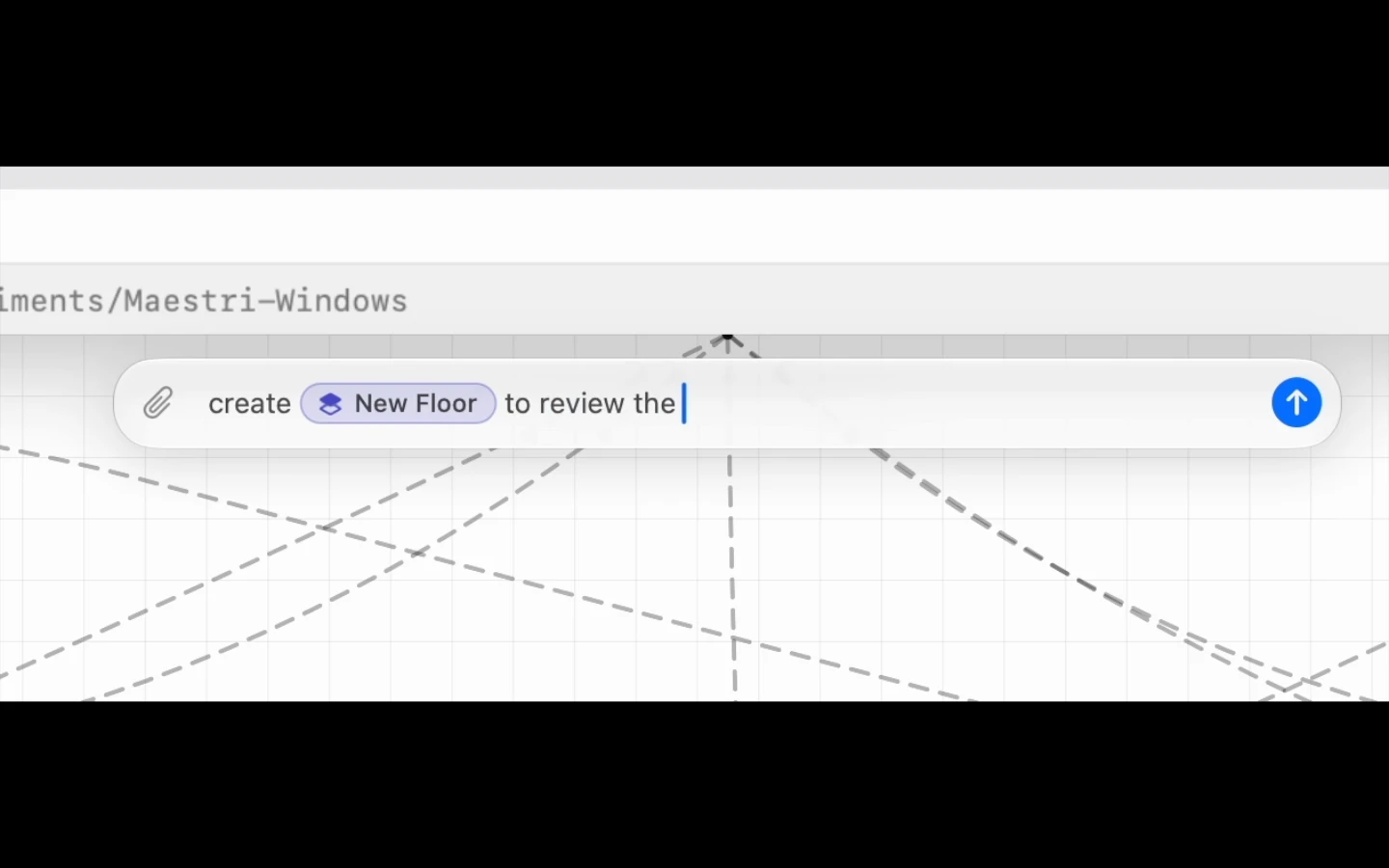
Type @New Floor in a Maestro's composer and describe the task. Maestri creates the floor, staffs it with an agent and gets to work. See Maestro.
Status and notifications
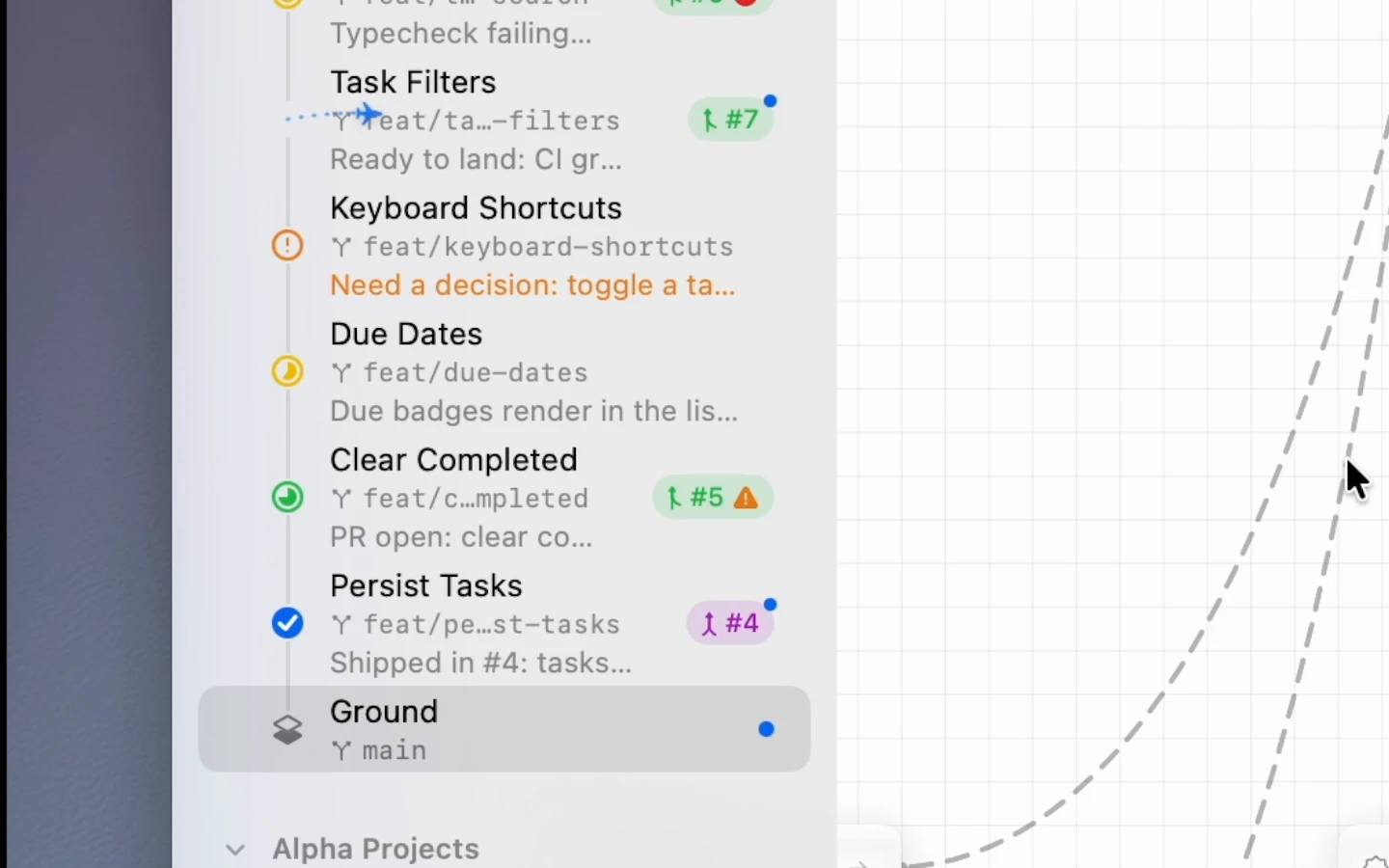
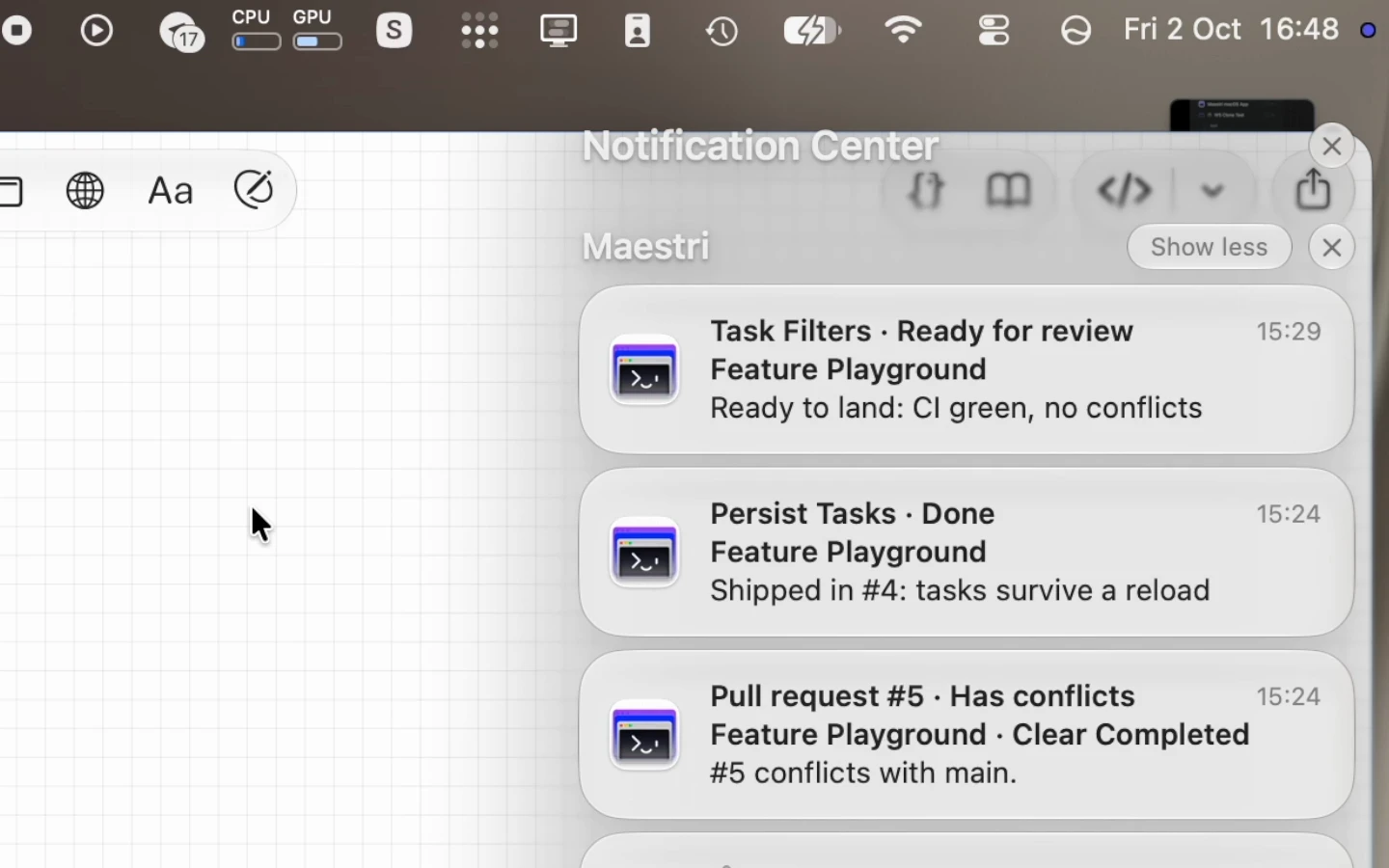
Agents on a floor post where their work stands as they go: Working, Blocked, Ready for review or Done, with a short line and, when they know it, progress. You see it at a glance on the floor's pill in the floor overview and on its row in the sidebar, and when a floor needs you (an agent is blocked, the work is ready for review, a pull request has conflicts) Maestri lets you know with a notification. You can turn those off in Settings → General → Notify when a floor needs you.
Agents post with the maestri floor status command, and you can set one yourself with Set Status… in a floor's menu:
maestri floor status "Wiring the settings page" --state working --progress 2/5
maestri floor status "Need a decision on the toggle copy" --state blocked
maestri floor status "Ready to land: CI green, no conflicts" --state review
Maestri Remote shows every floor with its status and pull request too, and lets you create floors, review pull requests, merge and send fixes to agents from your phone.
Landing a floor
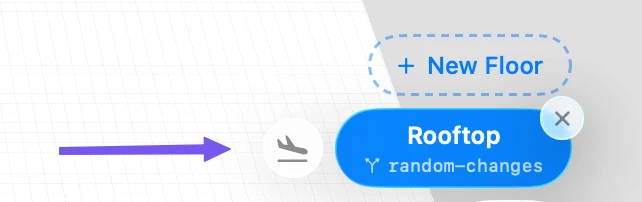
When the work is ready, click the airplane button next to the floor in the floor overview, or choose Land Floor from the floor's menu in the overview or the sidebar.
The landing sheet has two sides: Merge Locally and Pull Request. Either way, the floor's committed work is what lands; if the floor has uncommitted changes, Maestri offers to commit them first.
Merge locally
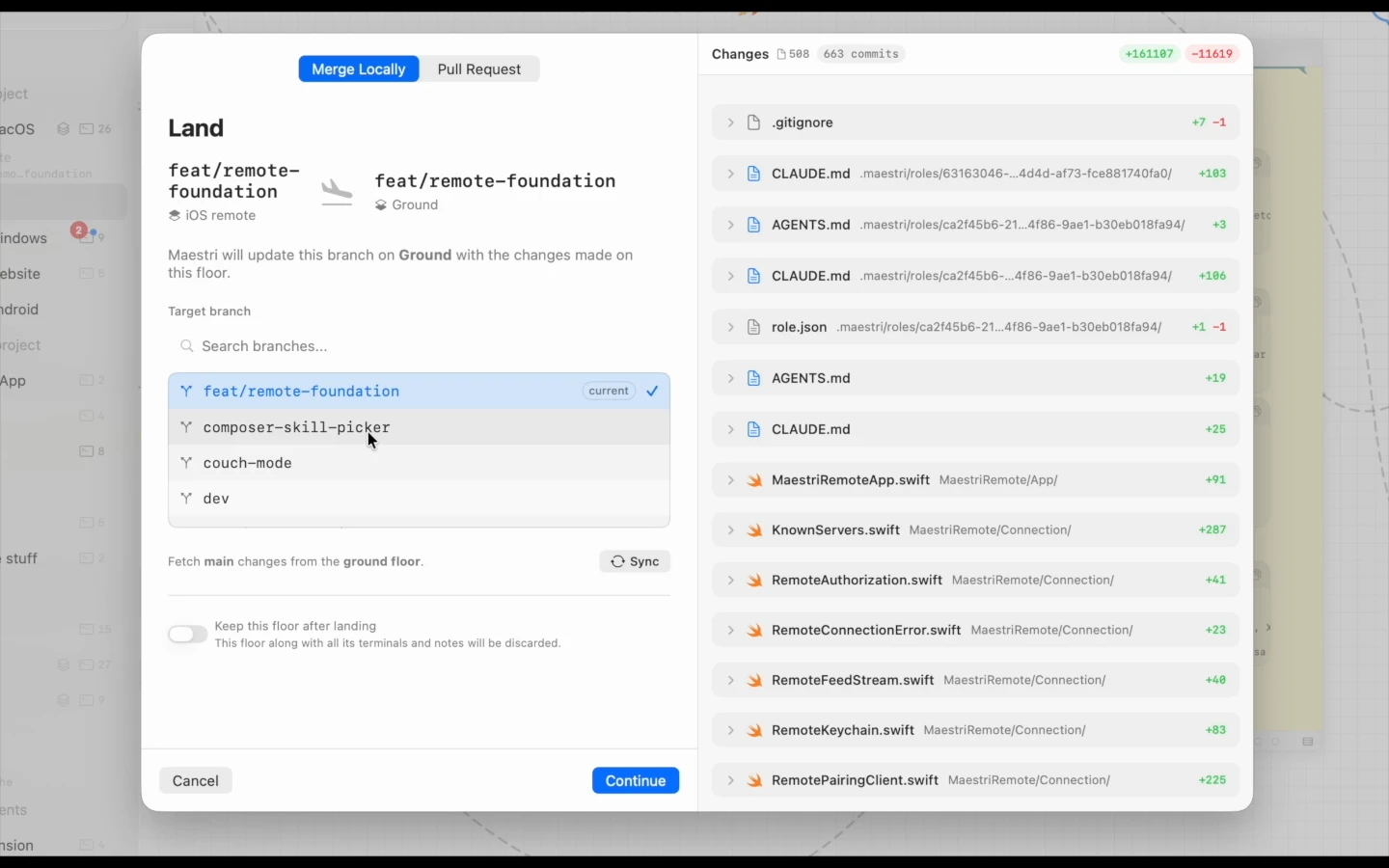
Pick the target branch:
- The floor's own branch. Maestri updates that branch in your project with the floor's work.
- Another branch. Maestri also merges the floor's branch into it, and can delete the floor's branch afterwards.
The right side lists every changed file with its diff. Sync brings the target branch's latest changes from Ground into the floor first. By default the floor is removed after landing, with its terminals and notes; turn on Keep this floor after landing to keep working on it.
When the merge would conflict, Maestri says which files and stops. Resolve them on the floor (or pick another branch), then land again.
Pull request
The landing sheet's other side sends the floor's work up as a pull request instead. See Pull requests below.
Pull requests
Floors speak pull requests from start to finish: open one from a floor, follow it through review and CI with agents fixing what comes up, and merge it without leaving Maestri. Maestri does it all through your host's own CLI, gh for GitHub or glab for GitLab, with the login you already have. There are no tokens to paste, and Maestri never stores one.
Opening a pull request
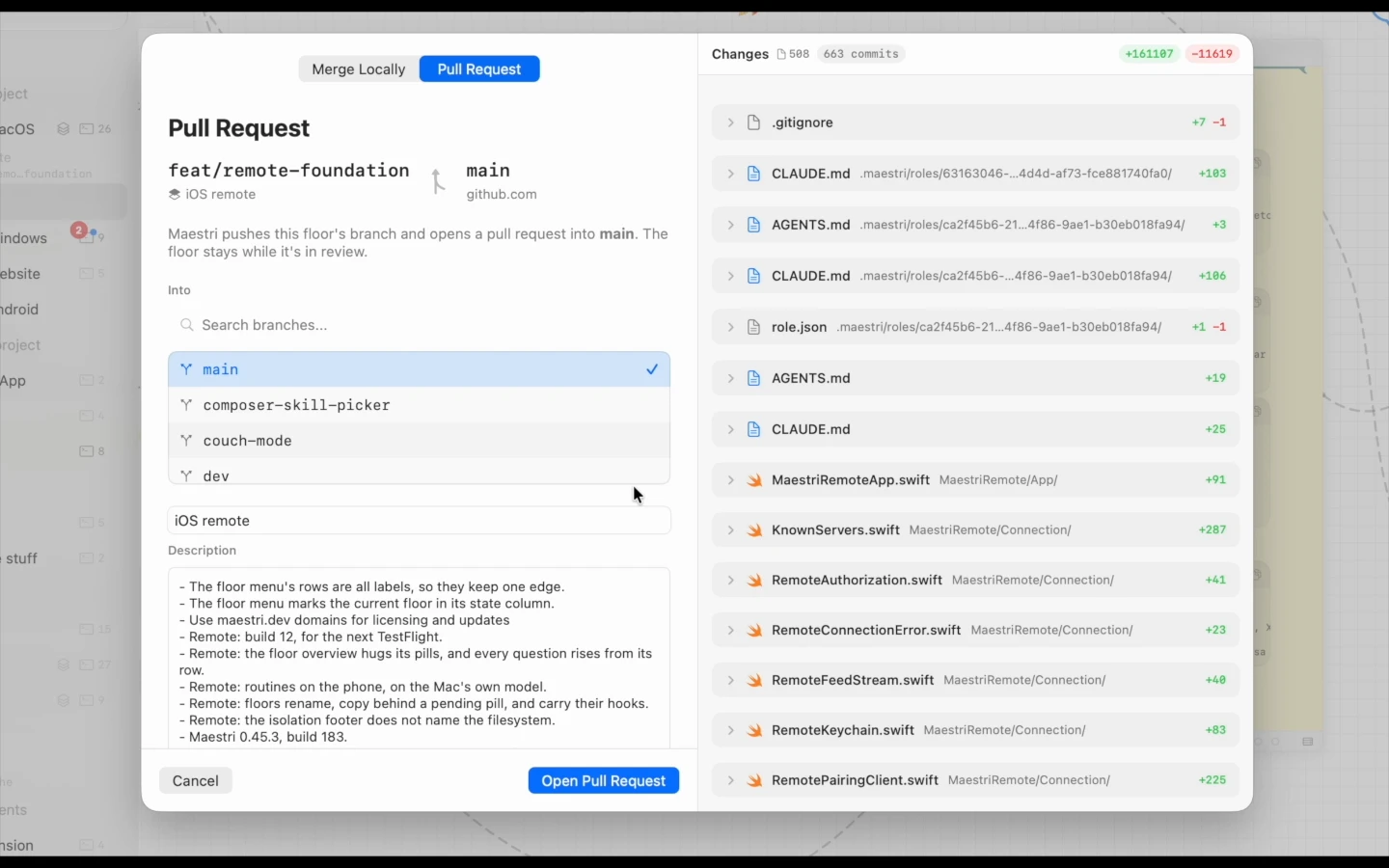
- Click the floor's land button (or choose Land Floor from its menu) and switch to Pull Request.
- Choose the branch it goes Into.
- Write the Title and Description. Maestri fills them in for you: the commit's subject or the floor's name for the title, and your repository's pull request template for the description, or the agents' status and the list of commits when there's no template. When the repository has several templates, pick one from Template.
- Paste or drop screenshots right into the description. They go up with the pull request (GitHub, with
gh2.99 or later). - Check Open as a draft if it isn't ready for review yet.
- Click Open Pull Request.
Maestri pushes the floor's branch and opens the pull request. If the floor has uncommitted changes, it offers to commit them first (Commit to Open Pull Request), since anything left uncommitted would stay behind.
The sheet tells you where it opens and as whom, such as "Opens on GitHub as your-login". Change lets a workspace pick a different provider, choose Host's Website Only, or Run Host Commands On the workspace's own machine, for a host only that machine can reach (a GitLab behind a VPN, for example). When the host has no provider, its CLI isn't installed, or the branch goes to a fork, Maestri pushes the branch and opens the host's own new pull request page instead.
Pull requests your agents open
You don't have to open it from the sheet. When an agent on a floor runs gh pr create, or someone opens one on the host's website, Maestri notices within minutes, or as soon as an agent on the floor finishes a turn. From then on it's followed exactly like one opened from the landing sheet.
Following it
The floor stays while the pull request is in review, and its chip in the floor overview and the sidebar shows where it stands: waiting for review, approved, changes requested, checks running or failing, or conflicts with its base. A blue dot marks news since you last looked, like a new comment, review or push. Clicking the chip opens the landing sheet on the pull request.
Maestri checks every minute for the floor you're on and every five minutes for the rest, spreading checks out when you have many so it never eats your host's rate limit. Check Pull Request in the floor's menu asks right now. A change worth knowing about, such as a failed run, a review or a conflict, also sends a notification.
When something needs attention, one click hands it to an agent on that floor with the details it needs:
- Ask an Agent to Address the Review
- Ask an Agent to Fix the Checks
- Ask an Agent to Resolve the Conflicts
When the floor has commits the pull request doesn't have yet, the sheet says so and Push sends them.
Merging
Click Merge… and pick a method your host allows: merge commit, squash or rebase. When it merges, the floor lands itself. Drafts can't be merged until they're marked ready on the host.
A pull request merged on the host's website lets you remove the floor from the same sheet with Remove Floor, and Maestri warns you first if the floor holds work the merged pull request didn't have. Either way, the floor's branch is kept in your project. A pull request closed without merging leaves its branch too, and Open a New Pull Request starts over.
Creating a floor from a pull request
Anyone's pull request can get a floor of its own, so you can run it, test it and have an agent review it without touching your own work.
- Open New Floor and switch Start From to Pull Request.
- Pick one of the repository's open pull requests, most recently active first. Type in Search, or paste a link to filter them, find older ones on the host, or paste a pull request's link or number.
- Click Create. The floor is named after the pull request, like "#42 Fix login redirect", unless you give it a name.
Maestri fetches the pull request and checks it out on a fresh floor, ready to run. Ask an Agent to Review It gives an agent on the floor a first review to do, reported back to you rather than pushed. When you're finished, Done Reviewing… removes the floor. A pull request already on a floor shows which one, since it can only have one.
Where the commits go depends on where the branch lives:
- A branch in your repository: the floor checks out the pull request's own branch, and commits you push from the floor go to the pull request.
- A branch on a fork: the floor gets a read-only copy of its commits on a branch named like
pr-42, so nothing lands in the wrong place.
You can do the same from a Maestro, typing something like "@New Floor to review PR 32", from Maestri Remote on your phone, or from a terminal with maestri floor create --pull-request 42.
Git hosts and providers
GitHub and GitLab work out of the box, including GitHub Enterprise and self-hosted GitLab once their host is added to a provider. Maestri works out which provider a project uses from where git push sends the floor's branch, following your SSH config, so a Host alias like github-work resolves to the real host.
Settings → General → Git lists every provider, the account its CLI is signed in as, and the exact error for any provider file that doesn't load. A project whose host has no provider still works: Maestri pushes the branch and opens the host's own new pull request page.
Adding your own provider
Each provider is a small JSON file in the providers folder, ~/.maestri/git-hosts/providers/. Click Show Providers Folder in Settings to open it. The file names the hosts it matches and the commands that create, find, follow, list and merge pull requests. Maestri never calls a host's API itself: it only runs the programs your file names, such as gh, glab or curl, which keep their own login.
That folder also holds an AGENTS.md guide Maestri keeps up to date, describing the whole format with recipes for a second GitHub account, GitHub Enterprise, self-hosted GitLab and hosts without a CLI. Point an agent at it and ask it to write the provider for you.
A second GitHub account, for example, is a copy of github.json under a new id, matched to the SSH alias your work repositories use and signed in as that account:
"match": { "aliases": ["github-work"] },
"token": { "run": ["gh", "auth", "token", "--hostname", "github.com", "--user", "you-at-work"], "env": ["GH_TOKEN"] }
A few things to know:
- One provider per file, named
<id>.json, with anidthat matches the file name. Unknown keys are errors, so a typo never runs as something else. github.jsonandgitlab.jsonship with Maestri. Editing one marks it modified; to make a variation, copy it to a new id instead. Restore Default… brings back the built-in version.- A provider file is a program that runs with your permissions. Only keep files there you'd run yourself.
- The same file works in Maestri on macOS, Windows and Linux. A
tokencan name a different program per platform.
Hooks
Hooks let you automate commands that run at key moments in a floor's lifecycle: when it's created, when you want to run tasks, and when it's deleted.
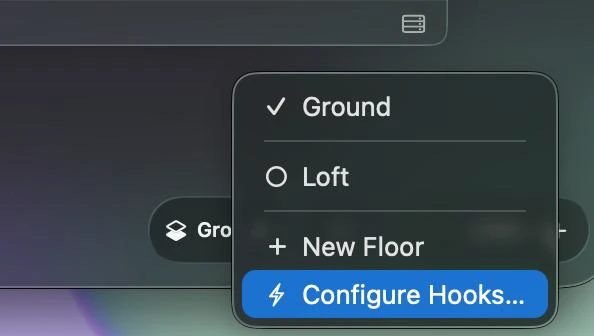
To configure hooks, right-click the floor button in the canvas and select Configure Hooks….
Hook types
There are three types of hooks:
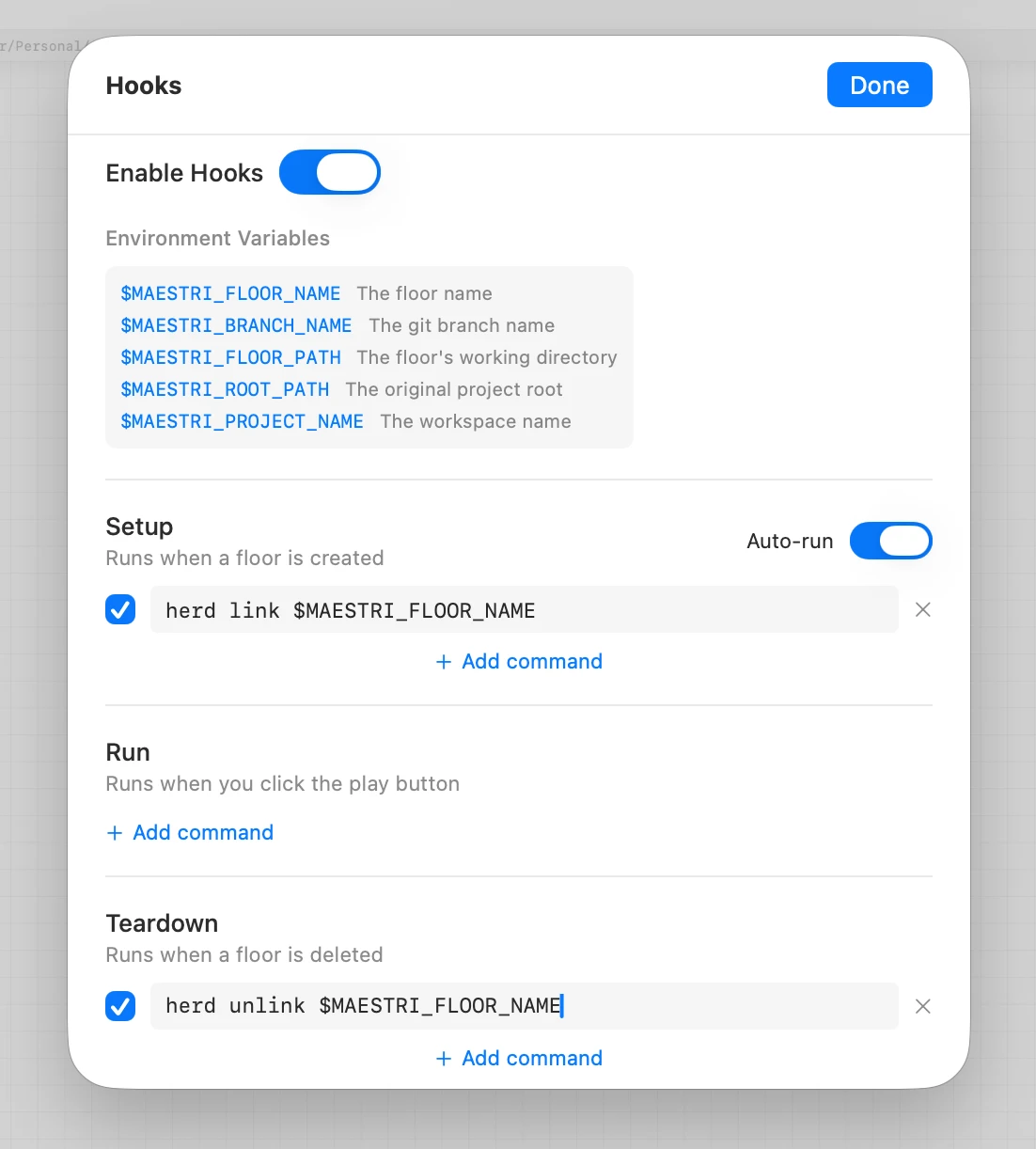
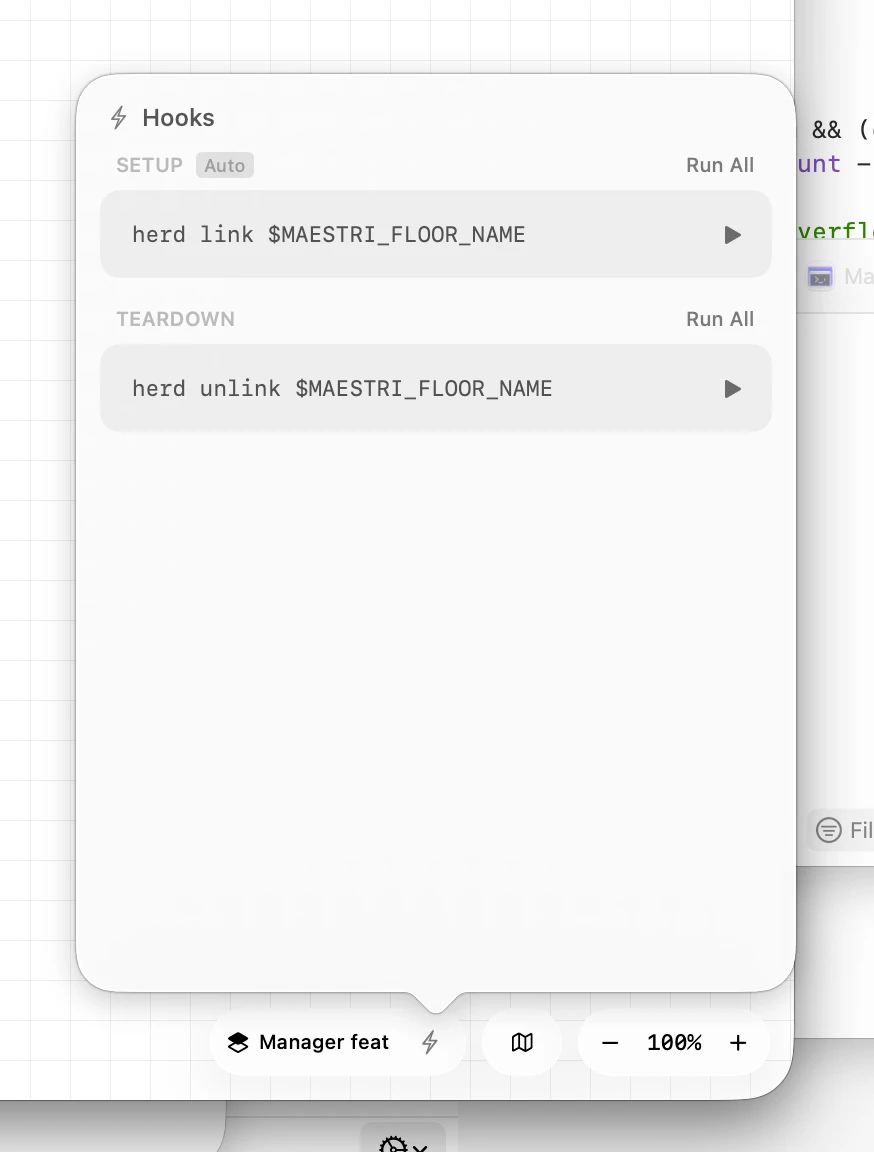
- Setup: runs when a floor is created. Use it to install dependencies, link services, or prepare the environment. Enable Auto-run to execute setup commands automatically when the floor is created.
- Run: runs when you click the play button. Use it for starting dev servers, running tests, or any on-demand task.
- Teardown: runs when a floor is deleted. Use it to clean up resources, unlink services, or remove temporary files.
Each hook supports multiple commands. Click + Add command to add more.
Environment variables
Maestri provides environment variables you can use in your hook commands:
$MAESTRI_FLOOR_NAME: the floor name$MAESTRI_BRANCH_NAME: the git branch name$MAESTRI_FLOOR_PATH: the floor's working directory$MAESTRI_ROOT_PATH: the original project root$MAESTRI_PROJECT_NAME: the workspace name
Quick access
Once configured, your hooks are always accessible via the bolt icon (⚡) next to the floor button in the canvas. From there you can see all your hooks grouped by type and run them individually or all at once with Run All.
Renaming a floor
Right-click a floor in the floor overview or in the sidebar and choose Rename. This is useful when the scope of your work changes or you want a more descriptive name.
Deleting a floor
Choose Delete Floor from a floor's menu. What goes with it depends on the kind of floor:
- Git worktree: its folder is removed along with any uncommitted changes. Commits on its branch stay in your project unless you also check Also remove the branch.
- Independent copy: its folder is removed with its own repository, so uncommitted changes and any commits you haven't landed go with it.
The floor command
Agents in Maestro Mode can manage floors from a terminal:
maestri floor create "Name" [--branch B] [--existing-branch] [--copy] [--copy-ground]
maestri floor create --pull-request 42
maestri floor list
maestri floor land "Name" [--into BRANCH] [--delete-branch] [--keep-floor]
maestri floor delete "Name" [--keep-branch]
maestri floor status "Text" [--state working|blocked|review|done] [--progress 2/5]
Landing and deleting run from a terminal on Ground, never from within the floor itself. floor status works from any terminal and posts for the floor that terminal is on.
Requirements
- A git repository. Without one, a floor is a separate canvas whose terminals work in the project folder, on Ground's branch.
- Copy-on-write, for instant floors. APFS on the Mac, or btrfs, XFS or bcachefs on Linux. Elsewhere floors are plain checkouts.
- Your host's CLI, for pull requests.
ghfor GitHub orglabfor GitLab, installed and signed in. Without it, pull requests open on the host's website.
How it works
Floors are stored in a .maestri/floors folder next to your project, on whichever machine the project lives. The folder is cleaned up when the last floor goes.
A worktree floor is registered with git without a checkout, Ground's files are cloned into it copy-on-write (.git aside), and git's index is then rebuilt over them, rewriting only the files the branch has different. Landing a worktree needs no transfer, since the floor's branch is already in your project. A merge into another branch runs in the checkout that has that branch, and is refused rather than overwriting uncommitted work there. An independent copy is a full copy-on-write clone, and landing it fetches its commits back into your project first.