Workspaces
A workspace is Maestri's equivalent of a project. It remembers your canvas layout, terminal positions, agent assignments, and settings — so picking up where you left off is instant.
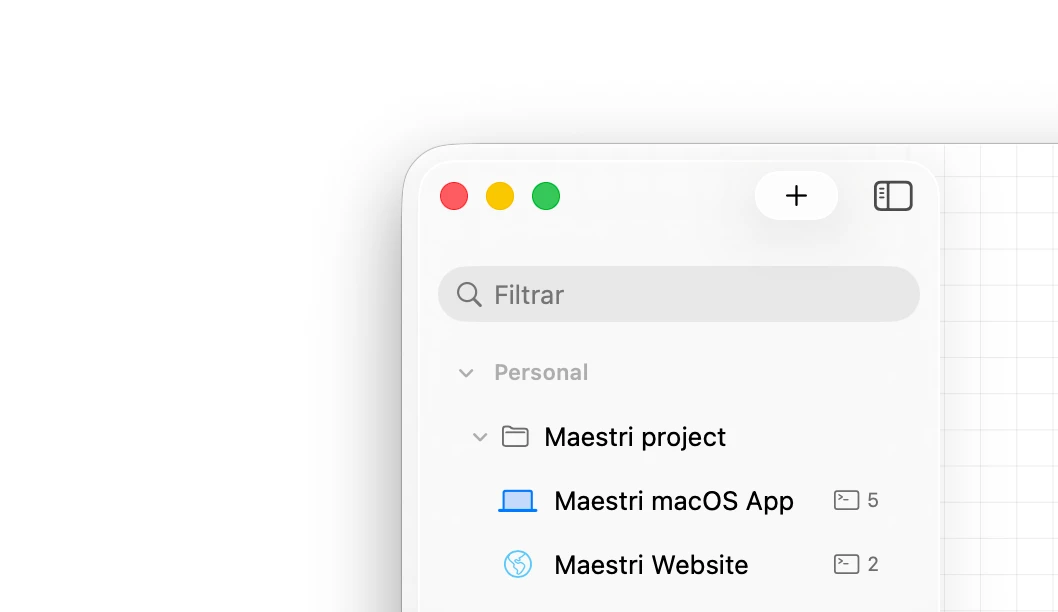
Creating a workspace
Click the + button in the sidebar to create a new workspace. You'll be asked for two things:
- Working directory — The root folder for this project. New terminals will open here by default.
- Icon — A small icon to help you identify the workspace at a glance in the sidebar.
Once created, the workspace appears in the sidebar and opens automatically.
Tip
Workspaces run in the background when you switch away. You can have multiple workspaces active at the same time and switch between them freely.
Editing a workspace
Right-click any workspace entry in the sidebar and choose Edit to update its name, icon, working directory, or agent instructions.
Importing a workspace
Choose File → Import Workspace to open a shared .maestri archive. Maestri shows you what's inside before anything happens, then lets you choose where the workspace lands.
CLAUDE.md and AGENTS.md
From the workspace edit screen, you can manage CLAUDE.md and AGENTS.md files. These files contain instructions that agents automatically receive when they start inside that workspace — a great place to define project conventions, context, or any standing instructions you'd otherwise repeat every session.
Since Claude Code only understands CLAUDE.md while most other agents have standardized on AGENTS.md, Maestri includes an option to keep both files in sync automatically. Enable it in the workspace settings if you run mixed agent setups.
Folders and groups
As your workspace list grows, you can organize it two ways:
- Folders — Group related workspaces (e.g., different services in the same system). Useful when workspaces share a project but have different working directories.
- Groups — Section dividers in the sidebar with a label. Useful for separating unrelated categories, like personal and work projects.
Mini sidebar
The mini sidebar is an optional, minimal companion to the full sidebar. It only appears when the full sidebar is closed, giving you a compact row of workspace icons on the canvas without committing to the full sidebar. Toggle it off and it disappears entirely, leaving the canvas clean.
Go to View → Toggle Mini Sidebar to show or hide it.
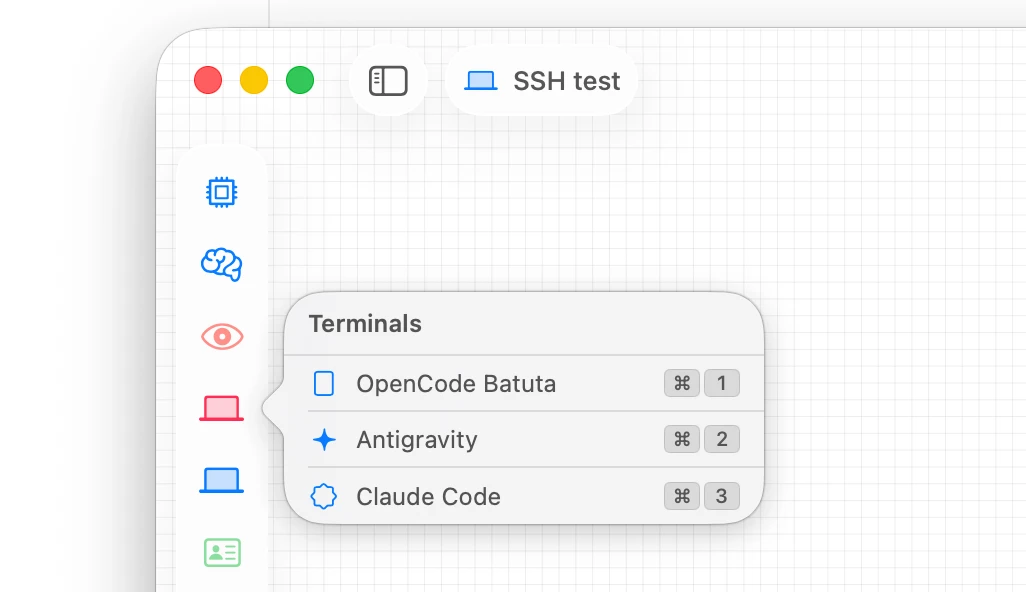
In the mini sidebar, only the workspace icons are shown:
- Click an icon to switch to that workspace.
- Hover an icon to reveal its workspace label.
- Click and hold to see the list of terminals in that workspace.
- Right-click for the same context menu as a workspace entry in the full sidebar.
Open in editor
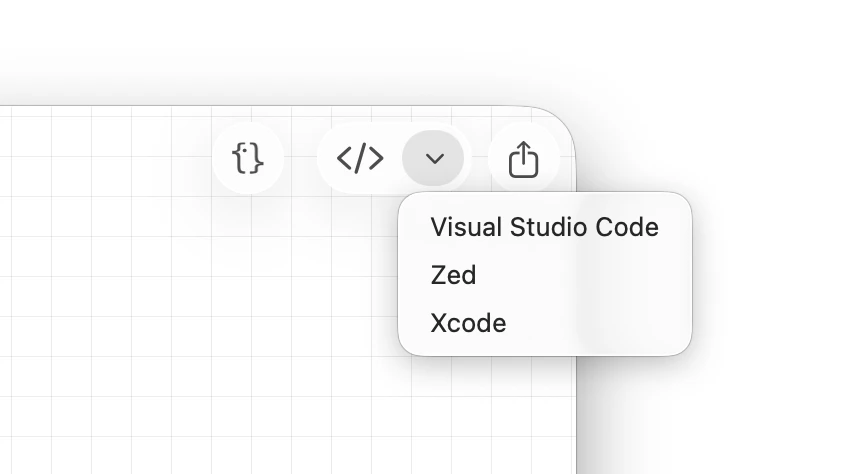
A button in the top-right corner of the app lets you open the current workspace's working directory directly in your code editor.
Spotlight integration
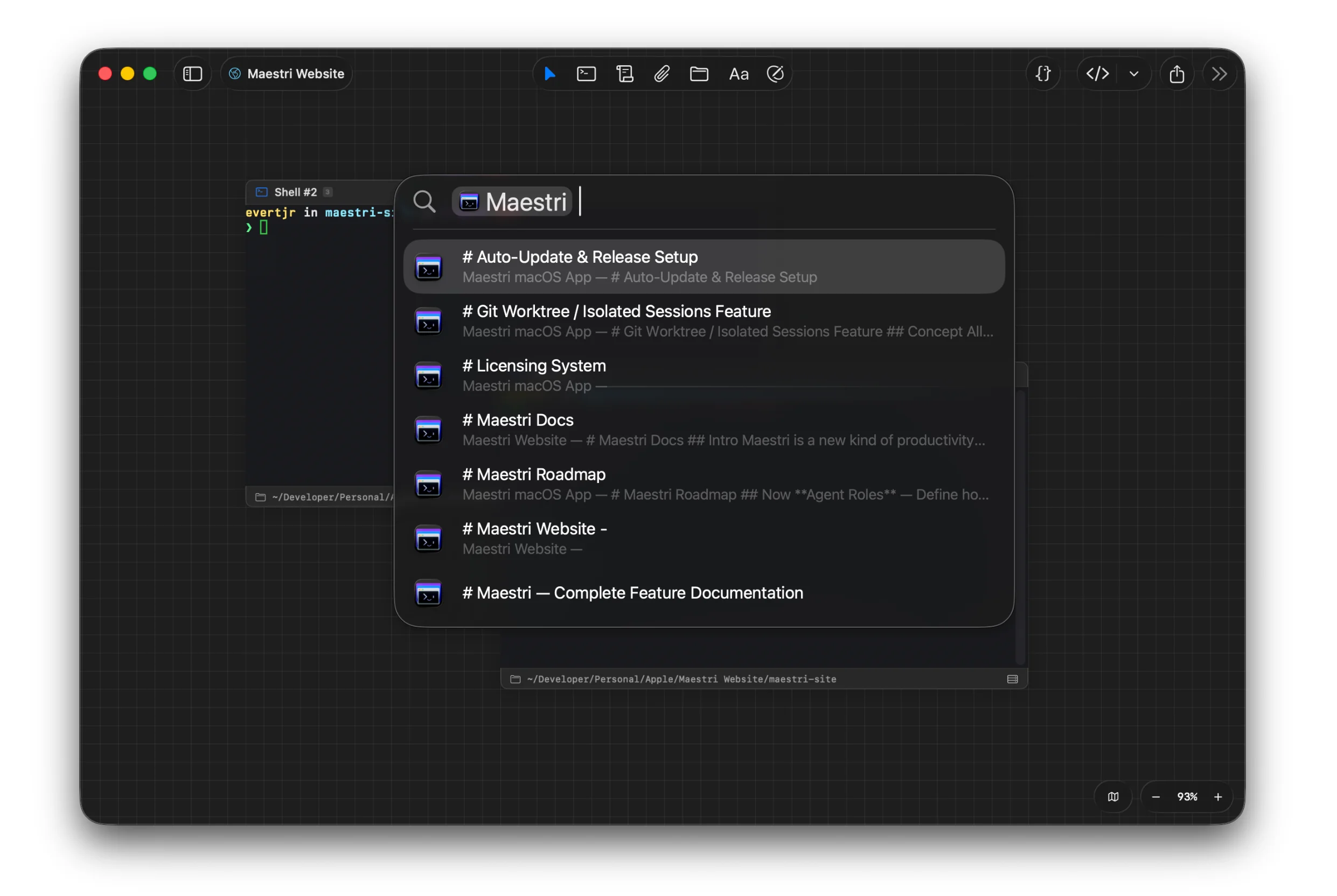
All your workspaces are indexed system-wide on macOS through native Spotlight integration. Open Spotlight and search for a specific terminal window or note content — the result takes you directly to it inside Maestri.
macOS only
Spotlight indexing is a macOS feature and is not available in Maestri for Windows.
Workspace shortcuts
Maestri is built for fast context switching. Three ways to navigate between workspaces:
Arrow keys
Ctrl + ↑ or Ctrl + ↓ moves to the previous or next workspace in sidebar order.
Number shortcuts
Double-tap Ctrl and the sidebar icons are temporarily replaced by numbers. Press any number to jump to that workspace immediately.
You can assign a custom number to each workspace in its settings. Reserve this feature for your most-visited workspaces — it's the fastest way to switch.
Trackpad and mouse
Hold Ctrl and swipe up or down with two fingers (trackpad) or the scroll wheel (mouse) to cycle through workspaces.
Tip
All shortcut bindings — including these — are customizable in the app's Settings.