Troubleshooting
Maestri is a deeply interactive app — closer to a strategy game engine than a typical desktop utility. We work hard to keep it stable, but with so many moving parts on the canvas, things occasionally misbehave. Here's how to recover when they do.
Windows blocks the Maestri installer with Smart App Control
Windows shows a dialog titled "Smart App Control blocked an app that might be unsafe" when Smart App Control blocks something it cannot verify, including apps distributed outside the Microsoft Store.
There is no "Run anyway" here, unlike SmartScreen. The only way through is to turn the feature off:
- Open Windows Security.
- Go to App & browser control.
- Open Smart App Control settings.
- Set it to Off.
Then run the Maestri installer again. You can turn Smart App Control back On afterwards.
No other security setting needs to change.
The canvas stops responding to input
In rare instances, focus management between the canvas and the windows on it can drift. When that happens, you may find that you can't resize or move nodes, or that keyboard shortcuts stop landing where you expect.
Open the View menu and choose Reset Focus. It clears the focus state and hands control back to the canvas, without touching your work.
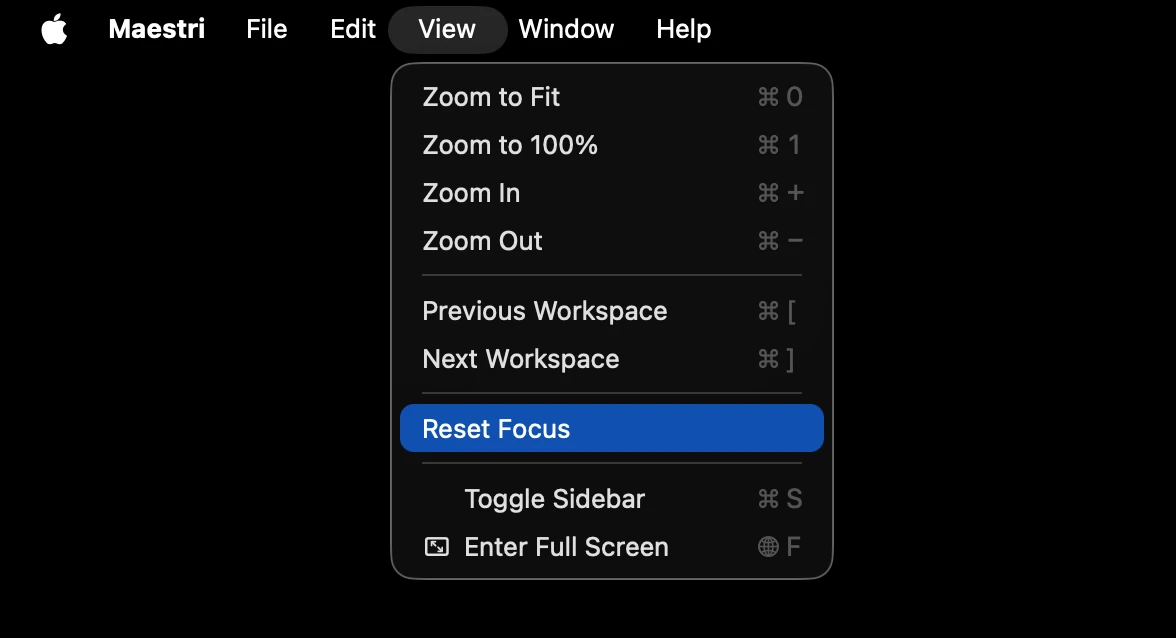
If you hit this regularly in a specific situation, please report it (see below) — focus drift is something we want to squash, not work around.
Maestri is using too much memory
Maestri itself is a fully native app and idles at around 200 MB of RAM — best in class for what it does. The memory pressure you see almost always comes from the agents running inside its terminals, not from Maestri.
A single Claude Code instance, for example, typically uses 500–700 MB. Maestri actively encourages you to run many agents in parallel, so that adds up fast.
There are two built-in ways to keep things under control.
Memory limit per terminal
In Settings → Terminal, enable Memory limit per terminal and set a maximum (in MB).
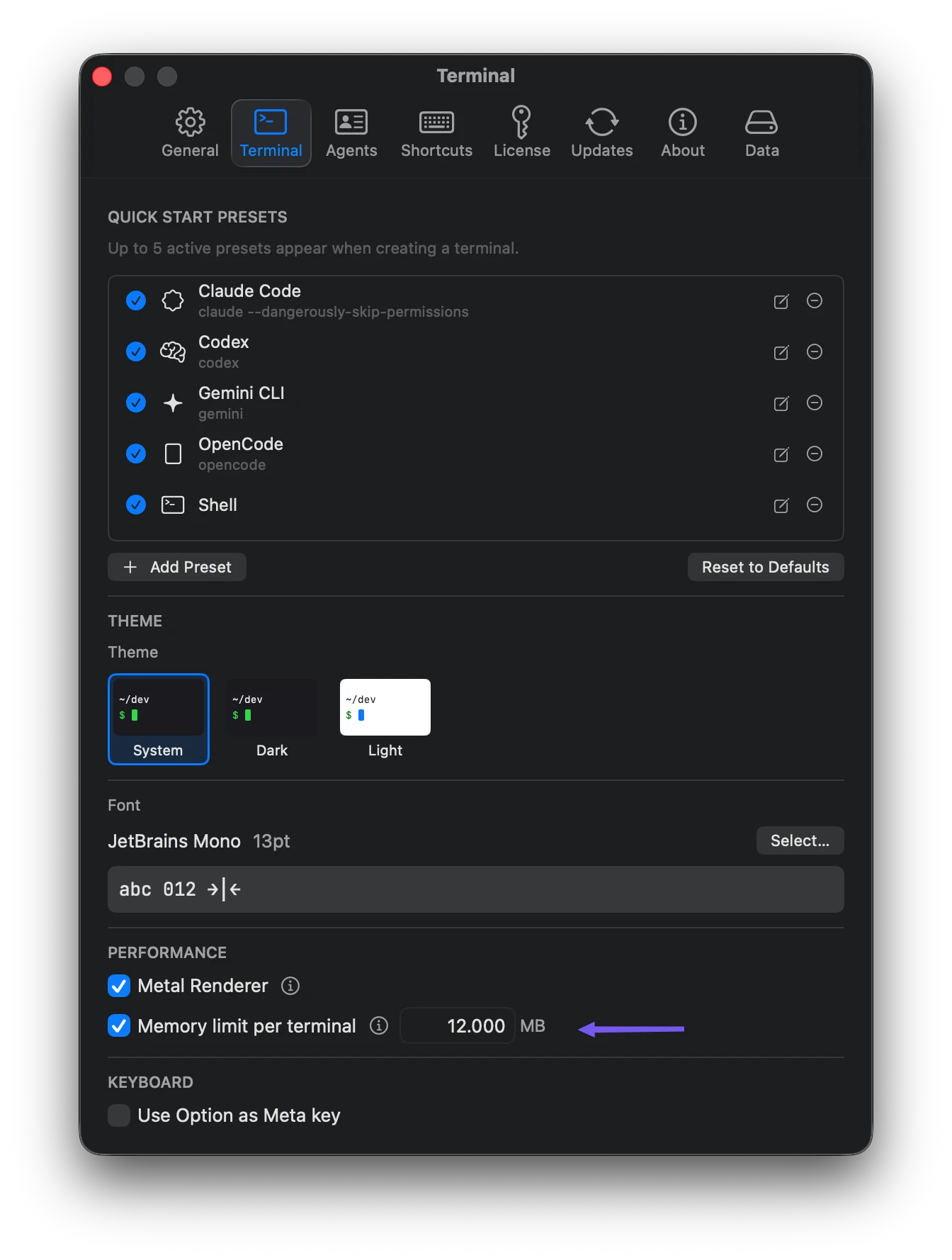
When enabled, Maestri monitors every process started inside a terminal. If any of them crosses the threshold, Maestri kills that process while keeping the shell itself alive — so you don't lose the terminal, just the runaway child. It's a great safety net for catching memory leaks or misbehaving tools before they take down your whole system.
Unload a workspace you're not using
Right-click any workspace in the sidebar and choose Unload. The workspace hibernates and releases all the resources it was holding — terminals, agents, portals, the lot.
The next time you open it, it wakes up immediately and picks up where it left off. Use this for projects you know you won't touch for a while.
The same logic applies on app launch: when Maestri starts up, only your active workspace is loaded. Every other workspace stays hibernated until you click it. To tell at a glance which workspaces are hibernated, look at the terminal icons in the sidebar — faded icons mean the workspace is hibernated, full opacity means it's loaded and running.
Sending us a diagnostics report
When something does go wrong, the fastest way to help us fix it is to send a diagnostics report.
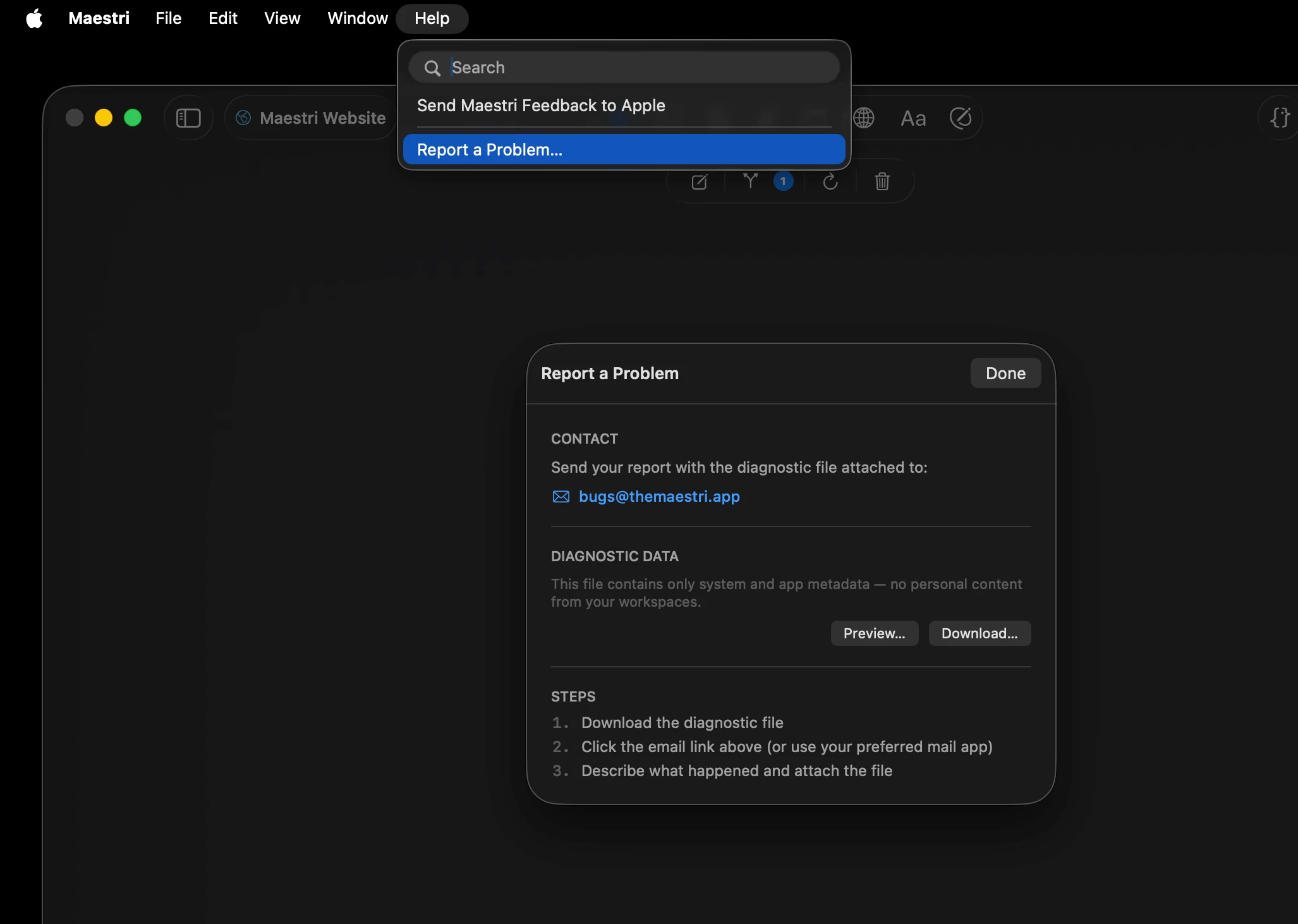
- Open Report a Problem… — from the Help menu on macOS, or from Settings → About on Windows.
- Click Download to save the diagnostic file.
- Email it as an attachment to bugs@themaestri.app, along with a short description of what happened and the last action you remember taking.
Note
The diagnostic file is fully anonymous. It contains system metadata and recent app logs and crashes — no code, no terminal output, and nothing from your workspaces.
The more detail you can share about what you were doing right before the issue, the faster we can reproduce and fix it. Thank you for helping make Maestri better.