Notes
Notes look like simple sticky notes on the canvas, but under the hood they're real markdown files saved to disk. Maestri includes a fully featured markdown engine with live preview — and agents can read and write them through the Maestri CLI.
Creating a note
Select the Note tool from the top toolbar and draw a rectangle on the canvas. A new .md file is created in Maestri's storage folder and pinned to the canvas.
Raw and formatted views
Every note has two viewing modes, toggled from the contextual toolbar at the top of the note:
- Raw — A plain text editor. Write markdown directly.
- Formatted — A rendered preview. Tables, headings, code blocks, bold, italic — all rendered in real time.
Inline images
Paste images directly into a note. In formatted view they render as a visual preview; in raw view they appear as markdown syntax. Connected agents can see these images too, making it easy to share visual context with your AI assistants.
Diagrams
A fenced code block tagged mermaid draws as a real diagram in formatted view, rendered natively rather than shipped off to a browser. It uses the note's own font and colors, so a diagram looks like it belongs on the page instead of like a pasted picture. Flowcharts, sequence, class, state, ER, journey, pie, git graph, and architecture diagrams are all supported.
Hover a diagram and a copy button appears in its corner. Right-click it to choose:
- Copy Mermaid Source — the code inside the fence, to paste somewhere else.
- Copy as Image — the drawn diagram, ready for Slack, Keynote, or an issue.
Ask a connected agent to draw one and it shows up on the canvas the moment the agent writes the block.
Tables
A markdown table renders as a real table in formatted view, and it leaves as one too. Right-click it:
- Copy as Table — puts HTML, RTF, and tab-separated text on the clipboard, so Word, Numbers, Teams, and the rest paste a table rather than a row of pipes.
- Copy Markdown — the source, unchanged.
Double-click a cell to select just that cell, then Copy Cell for its text on its own.
Locking a note
Right-click a note and choose Lock Contents when its text should stop moving. A small lock appears in the note's header, the text becomes read-only, and connected agents are refused: they still read the note, but every attempt to write to it fails until you choose Unlock Contents.
It's the way to hand an agent a spec it must follow without leaving it free to rewrite the spec.
Custom note names
By default, a note's name is derived from its first line of text. To set a stable name that won't change when you edit the content, double-click the note's header or right-click → Rename.
Tip
Clear a custom name in the rename popover to go back to automatic naming based on the first line.
Note chaining
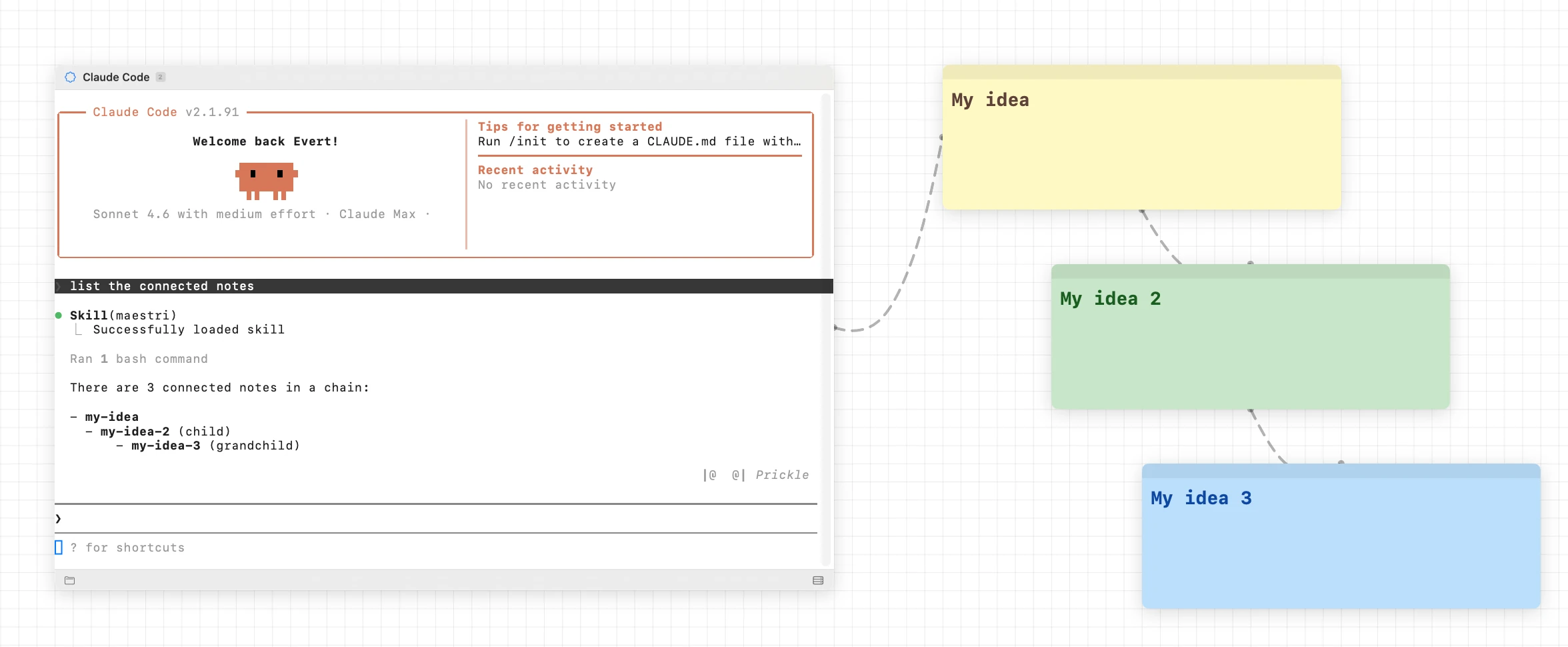
Notes can be connected to other notes to create a hierarchy. Connect a note to another note using the same Connection tool you'd use for terminals — a cable links them.
When an agent is connected to the entry-point note, it can access the entire chain. This is useful for organizing large amounts of context into a mind-map structure that the agent can navigate.
Custom file location
By default, notes are stored in Maestri's internal storage folder. To save a note somewhere specific in your project:
- Open the note's contextual toolbar.
- Select Move to... and choose a path.
The file lives at your chosen location from that point on. Note: if you later delete the note from the canvas, the file is not removed from your custom location.
Note
You can also drop .md, .markdown, or .txt files from Finder directly onto the canvas to work with them as notes, while keeping them at their original location.
Removing a note
To remove a note from the canvas, select it and press ⌘W. The note and its underlying file are deleted.