Environments
Environments let you choose where Maestri terminals run. A workspace can run locally, on an SSH server, inside a Docker container, inside a Docker Sandbox, or through a compatible custom command-line runtime.
The environment is part of the workspace and terminal model, not just a terminal launcher. Skills, the Maestri CLI, roles, uploads, agent communication, workspace inheritance, recruitment, and floors all follow the selected environment.
Environment types at a glance
- Local — Work on the current machine. Direct local process. No discovery needed.
- Local (tmux) — Work on the current machine inside a persistent tmux session that survives quitting Maestri or losing the connection. No discovery needed.
- WSL — Windows only. A Linux distribution on the same machine. Runs through
wsl.exewith a native Linux relay. Discovered from the installed distributions. - SSH — Remote servers and development machines. OpenSSH session plus reverse tunnel. Existing SSH host, manual entry.
- Docker Container — Existing local containers. Uses
docker exec. Externally owned; Maestri never creates or deletes it. Discovered from running containers. - Docker Sandbox — Isolated AI development environments. Uses
sbx exec. Externally owned by Docker Sandboxes. Discovered from existing sandboxes. - Custom Runtime — Podman, Apple container, Lima, and other exec-style tools. Configured executable and argument arrays. Externally owned. Manual configuration.
Docker Container and Docker Sandbox are first-class integrations with focused configuration and discovery. Custom Runtime provides the same Maestri capabilities for tools that do not have a dedicated integration.
Enable environments
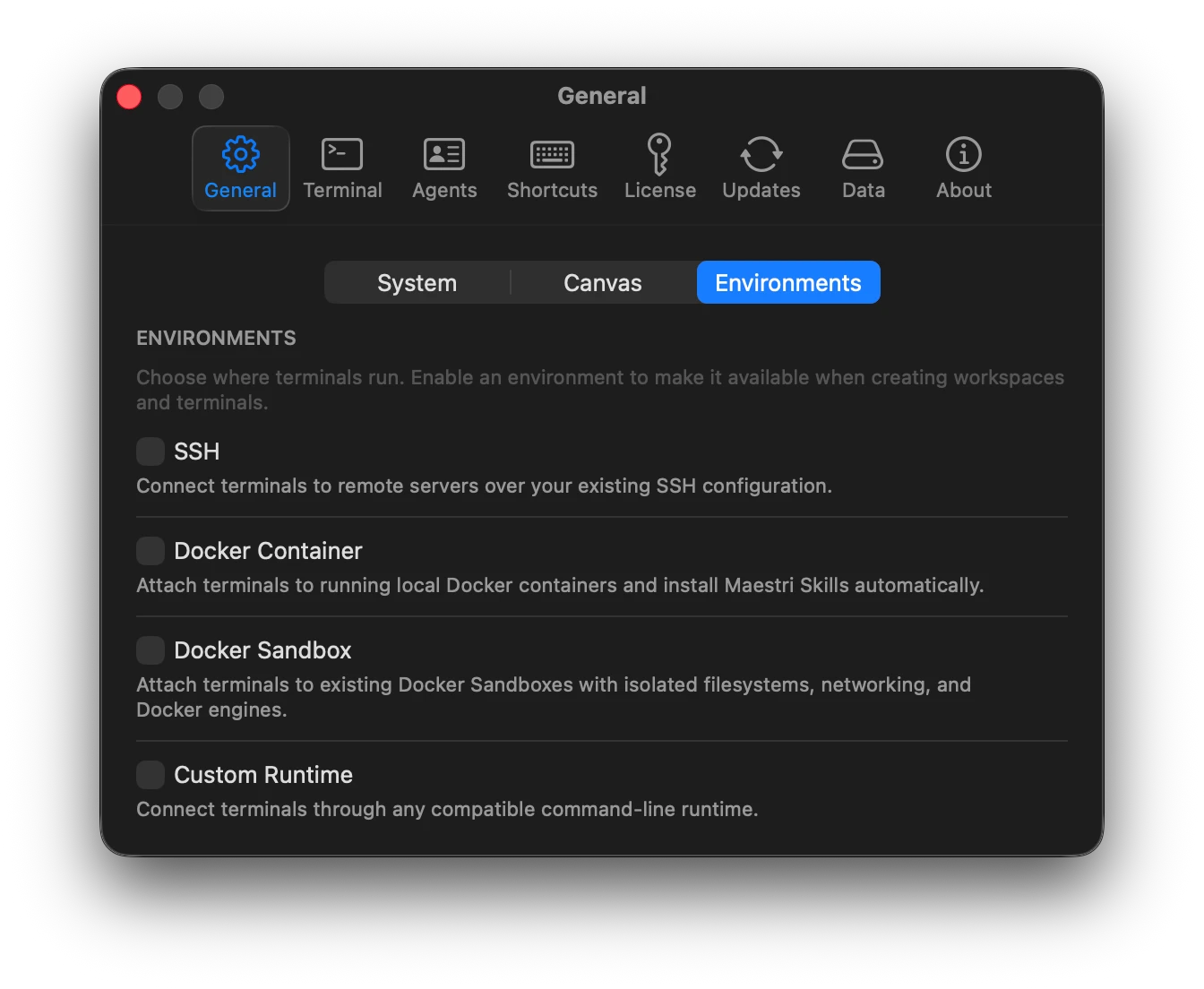
Open Settings > General > Environments.
The page contains independent switches for:
- WSL workspaces (Windows only)
- SSH workspaces
- Docker containers
- Docker Sandboxes
- Custom runtimes
Local terminals are always available and need no switch. An enabled environment appears in the Connection picker when creating or editing a workspace or terminal.
The Environments page also contains the shared Bridge Port, which defaults to 7433. SSH tunnels, containers, sandboxes, and custom runtimes use this listener to communicate with Maestri.
Choose an environment for a workspace
- Create a workspace, or edit an existing workspace.
- Choose an enabled option from Connection.
- Configure and test the environment.
- Set the working directory as it exists inside that environment.
- Save the workspace.
The workspace connection becomes the default for terminals on the ground level and every floor. Remote paths are kept in their remote form, including ~; Maestri does not validate them against the local filesystem.
A local workspace with git-isolated floors must remove those isolated floors before it can be converted into a remote workspace.
Override the environment for one terminal
A terminal can inherit its workspace environment or use its own connection.
- Create or edit a terminal.
- Open Details.
- Choose Workspace Default, Local, or another enabled environment.
- Configure and test the override when required.
- Save the terminal.
Workspace Default stores no terminal override. The terminal resolves the current workspace connection whenever it starts. A terminal-specific choice is persisted with that terminal.
Changing a running terminal environment restarts that terminal after saving. Assigned roles and Maestro mode continue to work across every supported environment.
Local
Local is the default environment. Maestri starts the configured shell directly on this machine in the selected working directory.
Local terminals use the Unix socket created by Maestri, so they do not need the TCP Bridge Port. The Maestri CLI and Skills are installed locally by the app.
Use Local when:
- The repository and tools are on the current machine.
- The agent should access local files directly.
- No container or remote isolation is required.
Local (tmux)
Local (tmux) runs the same shell as Local, but inside a local tmux session instead of a direct process. The session keeps running when Maestri quits or loses focus, and reopening the terminal reattaches to that same tmux session instead of starting a second one.
Use Local (tmux) when a local agent needs to keep running across an app relaunch, the same way a persistent session does for a remote environment. See Persistent sessions for how running sessions are ended.
WSL
Windows only
WSL is available in Maestri for Windows. It does not appear on macOS.
WSL connects a workspace or terminal to a Windows Subsystem for Linux distribution installed on the same machine. WSL 1 and WSL 2 both work.
Enable WSL
- Open Settings > General > Environments.
- Enable WSL workspaces.
Configure a WSL connection
The WSL sheet contains:
- Distro: chosen from the distributions installed on the machine.
- User: the Linux account the terminal logs in as. Leave it empty to use the distribution's own default user.
The user field matters on a distribution provisioned from a rootfs, where the default account is root and some agent CLIs refuse to run as root. Maestri passes the user per launch. It never writes /etc/wsl.conf and never changes the distribution's own default, so every other WSL tool on the machine keeps reading the setting you chose.
How WSL works
WSL terminals do not use the TCP Bridge Port. Maestri provisions a native Linux relay binary into the distribution, and the terminal reaches Maestri through it.
Entering a distribution for the first time can take a moment while WSL starts its virtual machine. Later terminals in the same distribution open immediately.
Skills are installed per distribution, under Settings > Agents > Skills.
WSL workspace paths
Set the working directory as it exists inside the distribution, such as /home/you/project or ~. Maestri keeps these paths in their Linux form and does not check them against the Windows filesystem.
SSH
SSH connects a workspace or terminal to an existing remote host using the system OpenSSH client and the keys in ~/.ssh.
Maestri uses key-based, noninteractive authentication. Password prompts are disabled so a terminal launch cannot become stuck behind an invisible authentication prompt. First-seen host keys are accepted, while changed host keys still fail verification.
Enable SSH
- Open Settings > General > Environments.
- Enable SSH workspaces.
- Review Script Path. The default is
~/.maestri/bin/maestri. - Choose whether to Add to PATH.
- Confirm the shared Bridge Port.
When Add to PATH is enabled, Maestri adds the script directory to common remote shell profile files.
Configure an SSH connection
The SSH sheet contains:
- Host: DNS name or IP address. A host picker lists the entries from your
~/.ssh/config; choosing one fills in the alias and keeps itsProxyJumpand identity file applying. - Port: SSH port, default
22. - User: Remote account name.
Select Test to run a short noninteractive command through OpenSSH. Failures provide targeted guidance for missing keys, hostname problems, refused connections, timeouts, and changed host keys.
How SSH works
When an SSH terminal starts, Maestri:
- Connects with
/usr/bin/ssh. - Opens a reverse tunnel from the configured Bridge Port on the server to the same port on your machine.
- Discovers and uses the remote home directory.
- Installs enabled Skills and the Maestri CLI wrapper.
- Installs assigned role files in the remote project.
- Starts the remote shell in the selected directory.
- Injects the terminal ID, bridge endpoint, and per-terminal token.
- Delivers the agent command after setup completes.
The reverse tunnel means the remote CLI reaches localhost:<Bridge Port> on the SSH host, while OpenSSH securely forwards it to Maestri.
Maestri does not install a daemon on the server. The installed CLI is a small curl wrapper, and the SSH process owns the tunnel for the terminal session.
Remove SSH
Removing an SSH configuration attempts to remove the provisioned CLI and enabled Skills from the remote home. It does not delete the remote project or modify the SSH server configuration.
Docker Container
Docker Container attaches Maestri terminals to an existing running container through the Docker CLI. It is designed for development containers that are already created and started by Docker Desktop, Docker Compose, OrbStack, another Docker context, or the user.
Maestri never creates, starts, stops, restarts, or deletes the selected container.
Configure a Docker container
The Docker Container sheet contains:
- Container: Running container name or ID.
- Docker Context: Optional context name. Leave empty to use the current local Docker context.
- User: Optional container user. Leave empty to use the image default.
- Shell: Shell path inside the container. The default is
/bin/sh.
The container menu lists running containers from the selected Docker context and shows each container image. Refresh reloads the list.
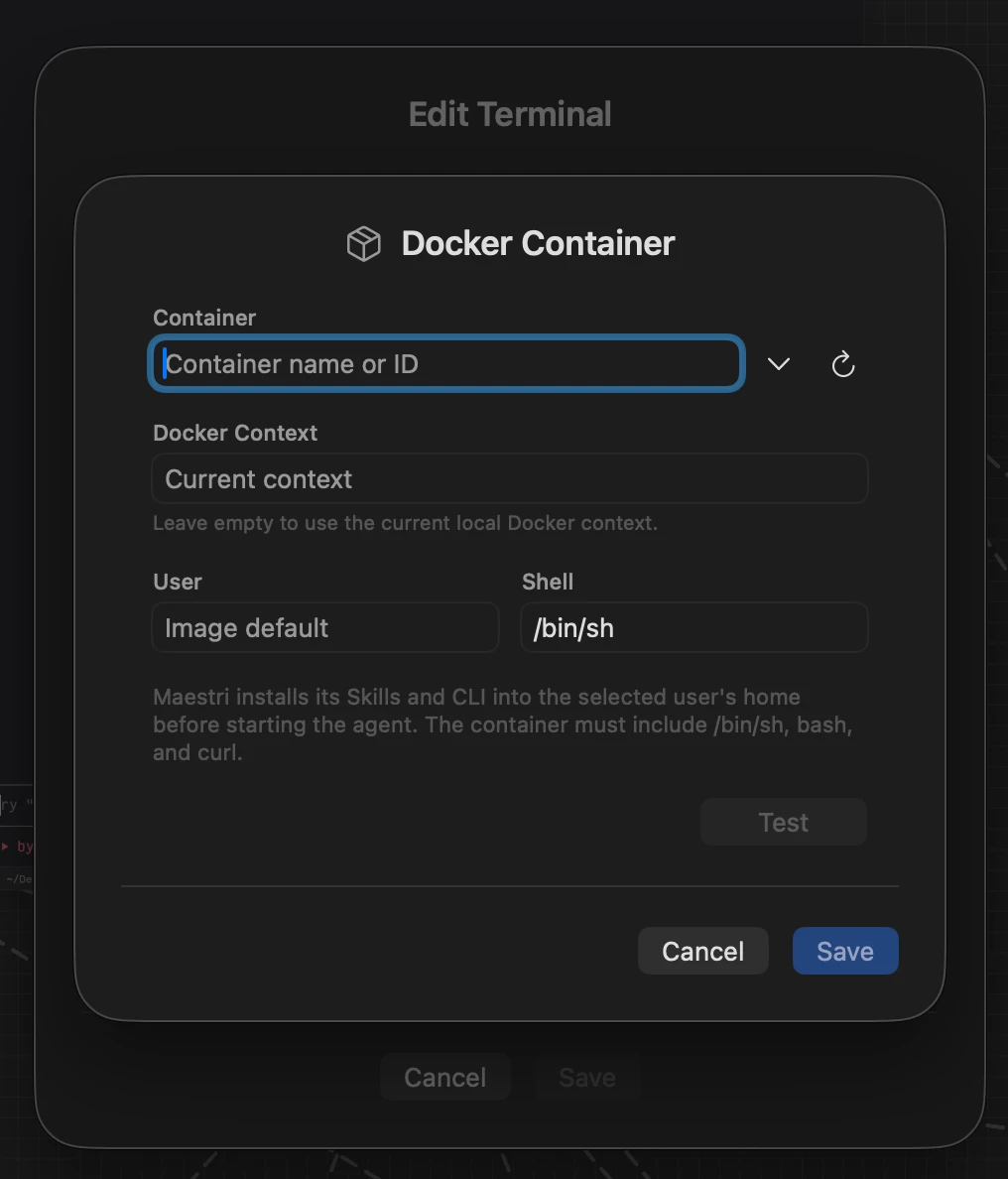
Test a Docker container
Select Test to verify that:
- The Docker CLI is available.
- The selected container is running.
- The effective home directory exists and is writable.
/bin/sh,bash, andcurlare installed.- The configured shell exists.
A successful result displays Container is ready.
How Docker execution works
Noninteractive setup, role operations, commands, and uploads use docker exec. Interactive terminals use docker exec -i -t. When configured, context and user arguments are included in every invocation.
For the interactive terminal, Maestri also passes:
- The selected working directory through
--workdir. - Terminal and bridge variables through
--env. - Safe terminal environment overrides.
- The configured shell as the final process.
The container reaches Maestri at:
host.docker.internal:<Bridge Port>
The remote PATH includes $HOME/.maestri/bin and $HOME/.local/bin.
Docker workspace paths
Set the workspace directory to a path that exists inside the container, not the source path on your machine. Examples include /workspace, /app, or ~/project.
Maestri does not add mounts or change container filesystem configuration. The container must already have access to the project.
Remove Docker
Removing the Docker configuration attempts to remove the provisioned Maestri CLI and enabled Skills from the container. The container and its files remain untouched.
Docker Sandbox
Docker Sandbox connects Maestri to an existing Docker Sandbox through the sbx CLI. Sandboxes provide isolated filesystems, networking, and Docker engines for AI development workflows.
Maestri attaches to the sandbox but does not create, clone, stop, or delete it. Workspace access and clone mode remain managed by Docker Sandboxes.
Configure a Docker Sandbox
The Docker Sandbox sheet contains:
- Sandbox: Existing sandbox name.
- User: Optional sandbox user. Leave empty to use the sandbox default.
- Shell: Shell path inside the sandbox. The default is
/bin/bash.
The sandbox menu is populated from sbx ls --quiet. Refresh reloads the available sandboxes.
Test a Docker Sandbox
Testing performs two jobs:
- It grants only the selected sandbox access to Maestri on
localhost:<Bridge Port>through the Docker Sandbox network policy. - It verifies the home directory,
/bin/sh,bash,curl, and the configured shell.
Maestri checks the policy first, adds the scoped rule only when needed, and verifies it again. A successful result displays Sandbox is ready.
How Sandbox execution works
Noninteractive setup, commands, role operations, and uploads use sbx exec. Interactive terminals use sbx exec -i -t. User, working directory, terminal variables, bridge credentials, and safe environment overrides are forwarded into the sandbox.
The remote PATH includes $HOME/.maestri/bin and $HOME/.local/bin.
Sandbox workspace paths
Use the project path as it appears inside the sandbox. Maestri does not control Docker Sandbox clone mode or host-directory exposure.
Remove Sandbox
Removing the Sandbox configuration attempts to remove the provisioned Maestri CLI and enabled Skills. It does not delete the sandbox or revoke unrelated sandbox policies.
Custom Runtime
Custom Runtime connects through any compatible local CLI that can execute an arbitrary command inside an existing environment. It is the advanced option for Podman, Apple container, Lima, custom VM tools, and future runtimes without dedicated Maestri support.
Like Docker and Sandbox, Custom Runtime is attach-only. Target lifecycle remains owned by the external tool.
Configure a Custom Runtime
The Custom Runtime sheet contains:
- Name: User-facing label, for example
Podman Development. - Executable: Command name or absolute executable path.
- Command Arguments: Exact prefix for setup, tests, commands, roles, and uploads.
- Interactive Arguments: Exact prefix for terminal sessions, including TTY flags.
- Shell: Shell path inside the target.
- Bridge Host: Hostname or IP that the target uses to reach your machine.
- Command Preview: Selectable preview of the interactive command shape.
Arguments are entered as compact command-line text and parsed into discrete argv values. Quotes preserve spaces inside one argument. Maestri launches the executable directly and never evaluates these fields as a host shell command.
Command Arguments
Maestri appends its remote command after the configured noninteractive prefix. The prefix must select the target and preserve stdin when the runtime requires a flag for it.
Podman example value:
exec -i development
Resulting command shape:
podman exec -i development <maestri-command>
Interactive Arguments
The interactive prefix must select the target, keep stdin open, and allocate a TTY.
Podman example value:
exec -i -t development
Resulting command shape:
podman exec -i -t development <maestri-shell-command>
Executable resolution
A bare executable name is resolved from the Maestri process PATH and common locations:
/opt/homebrew/bin/usr/local/bin/usr/bin
The browse button selects an executable directly. This is useful because GUI applications can have a different PATH from interactive shells.
Bridge Host
Maestri combines Bridge Host with the shared Bridge Port. Common values include:
- Podman:
host.containers.internal - Docker-compatible environments:
host.docker.internal - Apple container after host access setup:
host.container.internal - Environments sharing host loopback:
localhost
The default is host.containers.internal. Runtime networking determines the correct value.
Test a Custom Runtime
Selecting Test starts the local Maestri bridge and verifies the complete path:
- The configured executable exists.
- Command Arguments reach the target.
- The target home directory is writable.
/bin/sh,bash,curl, andenvare available.- The configured shell exists.
- The target can reach Bridge Host and Bridge Port.
A successful result displays Runtime is ready.
Podman example
Assume a running Podman container named development.
Name: Podman Development
Executable: podman
Command Arguments: exec -i development
Interactive Arguments: exec -i -t development
Shell: /bin/bash
Bridge Host: host.containers.internal
Apple container example
Assume a running Apple container named development.
Name: Apple Container Development
Executable: container
Command Arguments: exec -i development
Interactive Arguments: exec -i -t development
Shell: /bin/bash
Bridge Host: host.container.internal
Apple container host access must be configured separately before that bridge hostname works. Follow the Apple container documentation for container system dns create. The system configuration can require administrator access and can affect Private Relay, so Maestri never performs it automatically.
Custom Runtime requirements
A compatible CLI must:
- Execute an arbitrary command in an existing target.
- Forward stdout and stderr.
- Forward stdin for provisioning and uploads.
- Allocate a TTY for interactive sessions.
- Preserve appended arguments as separate values.
- Provide
/bin/sh,bash,curl, andenv. - Provide a writable home directory.
- Let the target reach the configured bridge endpoint.
Remove Runtime
Removing a Custom Runtime configuration attempts to remove the provisioned Maestri CLI and enabled Skills from the original target. It does not remove the target environment or project files.
Persistent sessions
A persistent session keeps an agent's process alive inside a tmux session instead of tying it to the terminal window. It survives quitting Maestri or losing the connection, and reconnecting attaches to the same tmux session instead of starting a second one.
Enable persistent sessions
Turn on Persistent session in the SSH, Docker Container, Docker Sandbox, or Custom Runtime sheet for a workspace or terminal. On this machine, choose the Local (tmux) environment instead of Local to get the same behavior without a toggle.
End a session
Open the Processes popover to see every running persistent session and end one at any time. Ending a session stops the underlying tmux session and its agent; it does not remove the terminal from the canvas.
Shared Maestri behavior
SSH, Docker Container, Docker Sandbox, and Custom Runtime share the same higher-level Maestri behavior even though each transport launches commands differently.
Provisioning sequence
When a remote terminal starts, Maestri generally:
- Connects to or executes inside the selected target.
- Discovers the effective home directory.
- Installs the Maestri CLI wrapper and enabled Skills.
- Installs assigned role files in the project.
- Resolves the selected working directory, including
~. - Starts the interactive shell with terminal and bridge variables.
- Reports provisioning warnings inside the terminal without hiding the shell.
- Delivers the configured agent command after setup completes.
Provisioning subprocesses are cancellation-aware. Closing or stopping a terminal while setup is running terminates the in-flight SSH, Docker, Sandbox, or custom runtime command.
Bridge and authentication
Maestri uses one app-wide TCP bridge listener for remote environments. Sharing one port avoids one listener per terminal and works across all floors.
Every remote terminal receives:
- A unique terminal ID.
- A unique secret token.
- The runtime-specific bridge address.
Every request must present both the terminal ID and token. Tokens are revoked when providers are removed. One terminal cannot authenticate as another terminal by knowing only the shared port.
SSH reaches the bridge through a reverse tunnel. Docker uses its host gateway name. Docker Sandbox uses a sandbox-scoped network policy. Custom Runtime uses the configured Bridge Host.
Environment variables
Remote shells receive values including:
TERM=xterm-256colorCOLORTERM=truecolorHOME=<remote-home>MAESTRI_TERMINAL_ID=<terminal-uuid>MAESTRI_HOST=<bridge-endpoint>MAESTRI_TOKEN=<per-terminal-secret>MAESTRI_CLI=<remote-cli-path>
Safe terminal environment overrides are forwarded. Overrides cannot replace HOME, PATH, or any MAESTRI_ value.
Skills and CLI
The default remote CLI path is:
~/.maestri/bin/maestri
Enabled Skills are installed under the configured remote Skill roots. Docker, Sandbox, and Custom Runtime extend PATH with:
$HOME/.maestri/bin
$HOME/.local/bin
SSH can also persist the configured CLI directory into remote shell profiles when Add to PATH is enabled.
Roles
Assigned roles are installed inside the effective project directory:
<project>/.maestri/roles/<role-id>/
Role installation, updates, cleanup, and terminal restart work for every environment. Connection identity is part of role cleanup, preventing terminals with identical path strings on different filesystems from deleting each other's files.
Discover Roles also scans the working directory of SSH, Docker Container, Docker Sandbox, and Custom Runtime terminals, not just local ones, so a role shipped in a remote project's .maestri folder can be imported the same way.
File and image uploads
Dropping or pasting supported remote content streams it into:
/tmp/maestri-drops/
The transfer uses the transport itself:
- SSH streams over a fresh SSH command.
- Docker streams through
docker exec -i. - Sandbox streams through
sbx exec -i. - Custom Runtime streams through Command Arguments.
Old drop files are removed opportunistically. Maestri then pastes the escaped remote path into the terminal.
Workspace inheritance and floors
- Workspace-level environments apply to ground-level terminals and terminals on every floor.
- Terminal overrides persist with the terminal.
- Workspace duplication preserves environment configuration.
- Terminal duplication preserves terminal overrides.
- Programmatically provisioned workspaces inherit the requesting workspace environment.
- Recruited agents inherit the manager terminal environment when appropriate.
- Terminal lookup and management cover all floors, not only the active floor.
Disabled environments
Disabling an environment hides it from new connection choices. Existing workspaces and terminals still display their saved environment when edited, but a disabled remote provider follows Maestri fallback behavior instead of launching that connection. Re-enable the environment before starting those terminals.
Troubleshooting
Environment does not appear in Connection
Enable it in Settings > General > Environments. Local is always available.
Remote terminal runs locally
The saved environment type is probably disabled. Re-enable SSH, Docker containers, Docker Sandboxes, or custom runtimes in Environments settings.
Working directory is missing
Remote paths refer to the target filesystem. Use the path visible inside the SSH host, container, sandbox, or custom runtime target. Maestri does not create project mounts.
Maestri command cannot reach the app
Check the Bridge Port and transport-specific route:
- SSH: verify reverse tunnel creation and server port availability.
- Docker: verify
host.docker.internalresolves in the container. - Sandbox: run Test so Maestri can verify or add the scoped policy.
- Custom Runtime: verify Bridge Host and run Test again.
Also check VPN routing, runtime network policies, and host firewall behavior.
Provisioning reports missing tools
Remote environments require /bin/sh, bash, and curl. Custom Runtime also verifies env. Install missing packages in the target image or machine.
Docker container is absent from discovery
Only running containers in the selected Docker context are listed. Confirm the context and start the container outside Maestri.
Docker container is not running
Start it with Docker or Docker Compose. Maestri intentionally does not manage container lifecycle.
Sandbox is absent from discovery
Confirm sbx is installed and the sandbox appears in sbx ls --quiet. Create or clone the sandbox with Docker Sandboxes before attaching Maestri.
Sandbox bridge policy fails
Review the error returned by sbx policy. Maestri requests only the selected Bridge Port for the selected sandbox.
SSH authentication fails
Maestri uses key authentication with BatchMode. Confirm the public key is present in remote ~/.ssh/authorized_keys, then test again.
Custom Runtime executable is not found
Use an absolute path or the browse button. Remember that the GUI process PATH can differ from the terminal PATH.
Custom Runtime reports a missing target
Confirm that Command Arguments and Interactive Arguments include the runtime subcommand and target identifier in the correct order.
Custom Runtime provisioning or uploads hang
Command Arguments probably do not preserve stdin. Add the runtime-specific stdin flag, commonly -i.
Custom Runtime terminal lacks interactive behavior
Interactive Arguments must request stdin and a TTY. Common flags are -i and -t, but syntax varies by runtime.
Recommended setup workflow
- Enable the required environment in Settings.
- Prepare or start the remote host, container, sandbox, or runtime target outside Maestri.
- Configure the environment at workspace level.
- Run the environment-specific Test action.
- Set the working directory as seen inside the target.
- Save the workspace.
- Create one plain shell terminal before launching an agent preset.
- Verify
pwdandecho $HOME. - Add terminal-specific overrides only when one terminal needs a different target.