Maestri Chat
Maestri Chat is a terminal's second face. Instead of replacing your agent's CLI, it puts a conversation over it: you write a message, the agent answers in words, and the shell keeps running underneath, revealed whenever you want it.
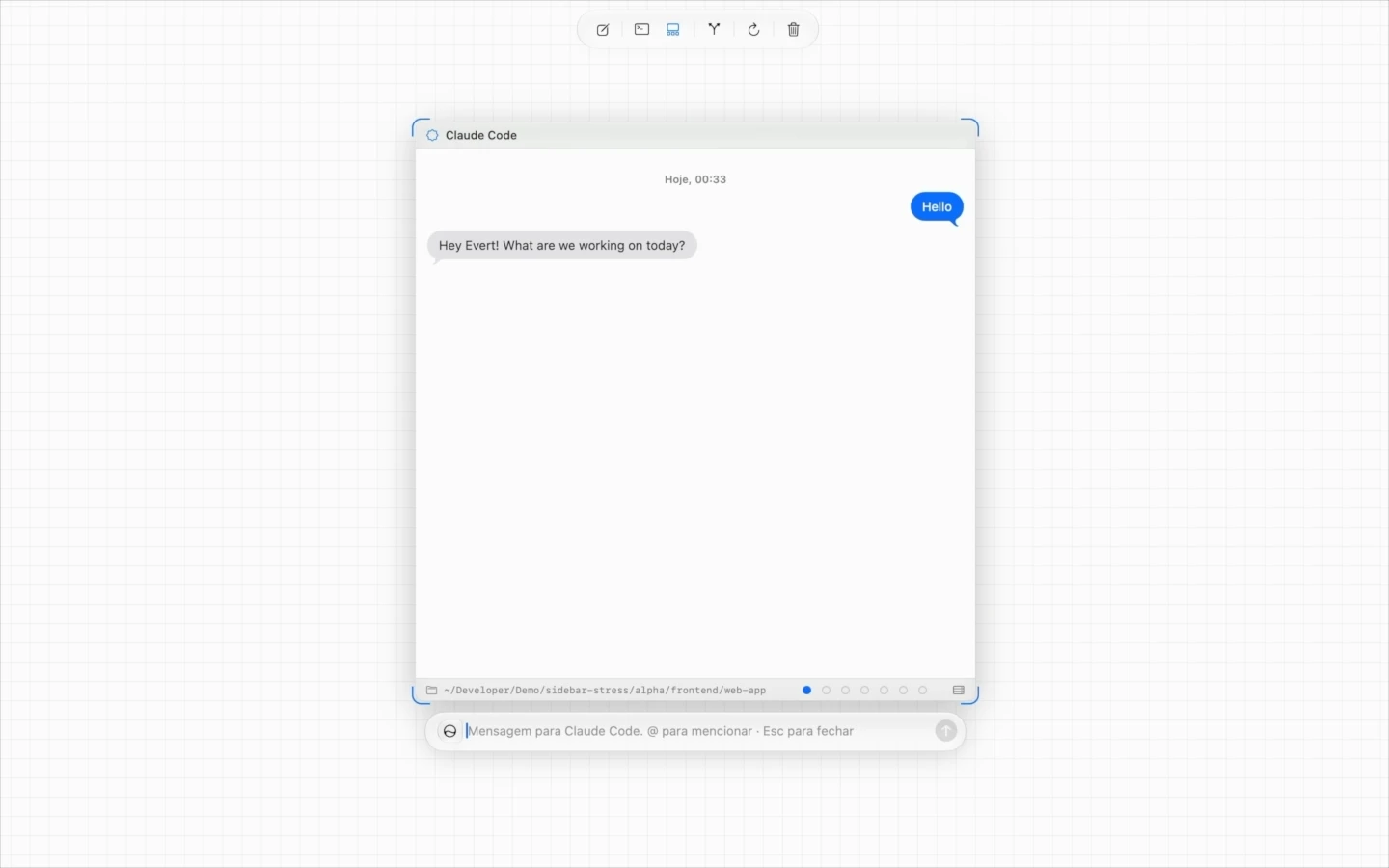
Because the agent hands Maestri what it wants to say, instead of Maestri reading its output, the transcript stays clean. No tool calls, no reasoning steps, no progress spinners. Only what the agent meant to say to you.
It works with any CLI that can load a skill and run a shell command, so the same conversation works whether the terminal is running Claude Code, Codex, or anything else you've set up.
Turning it on
Select a terminal and click the chat button in its contextual toolbar. The same button takes you back to the shell.
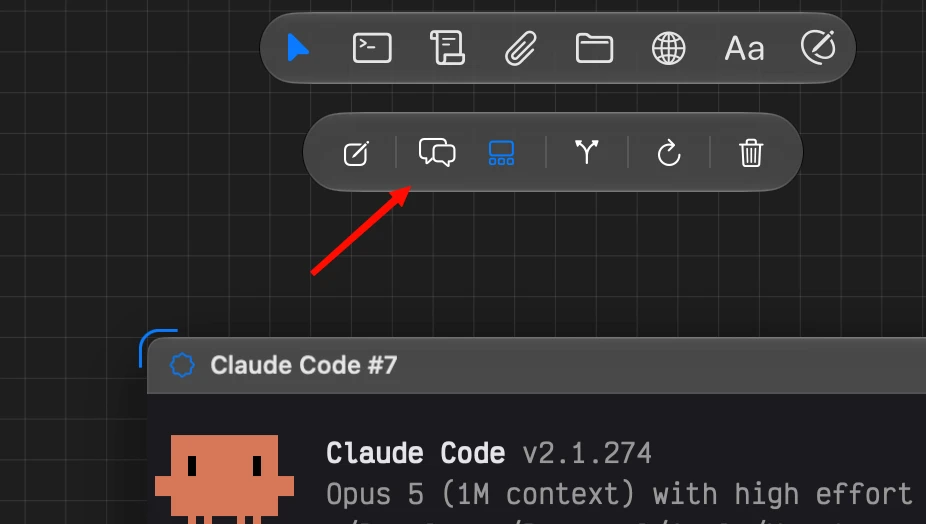
CtrlJ swaps the two faces from the keyboard. Rebind it as Swap chat and terminal in Settings → Shortcuts.
While you're in the shell, the chat button carries a badge counting replies you haven't read yet.
To have a terminal wear the chat face from the start, open its Appearance tab, switch it to Chat, and turn on Start in Chat Mode. Set it on an agent preset and every terminal you create from that preset opens in chat.
Note
Turning chat on partway through a session doesn't lose anything. A divider marks where the earlier conversation happened in the terminal, and the shell's scrollback is untouched.
Writing a message
The composer is the same Prompt Composer you already know, so @ mentions connected agents, notes and portals, the paperclip and a paste attach files, and Return sends.
Esc closes the composer. Pressing it while the agent is mid-turn interrupts that turn, exactly as it would in the terminal.
The terminal underneath
The shell never goes away. While a turn runs, it opens in a window under the caption row so you can watch the agent work.
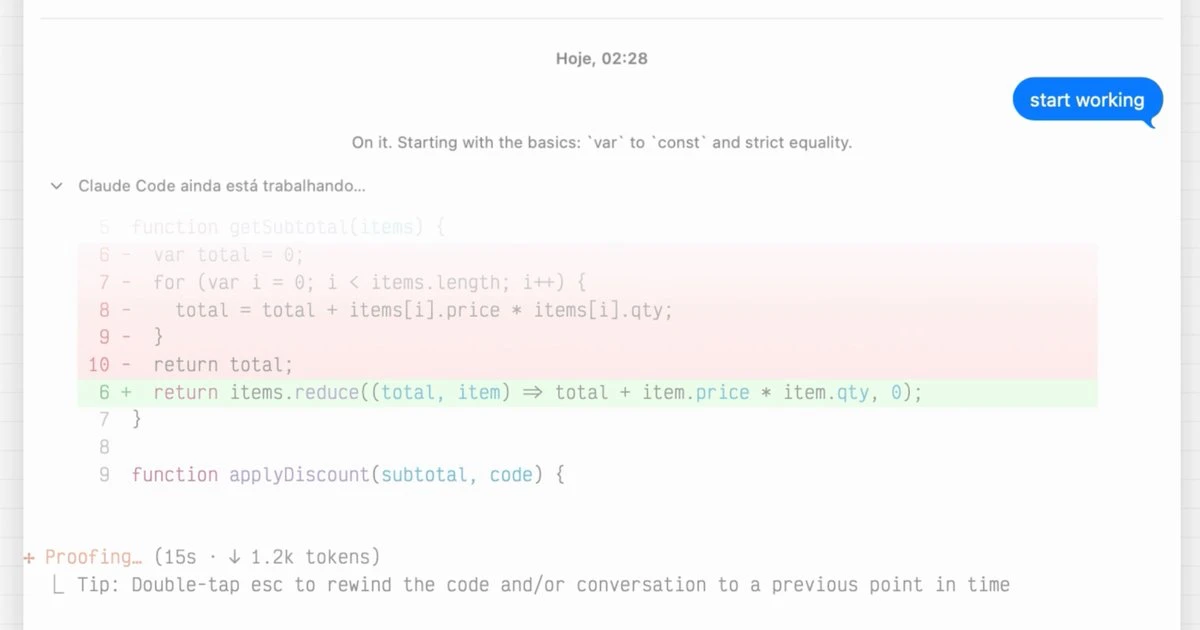
- The chevron on the working row decides whether that window opens during a turn. It's per terminal.
/hands the keyboard to the shell and types the slash there, so your CLI's own slash commands open where you expect them.- CtrlJ, or a click on the caption row, shows the whole shell. Ctrl⇧P brings the conversation back.
That's the trip you make to switch models, compact the context, or follow the agent's trajectory through a task, without leaving the conversation you were having.
Threads
Each terminal keeps seven threads, in fixed colors. Each one is a separate subject with the same agent, for when you want to ask about something else without tangling it into what you're already discussing.
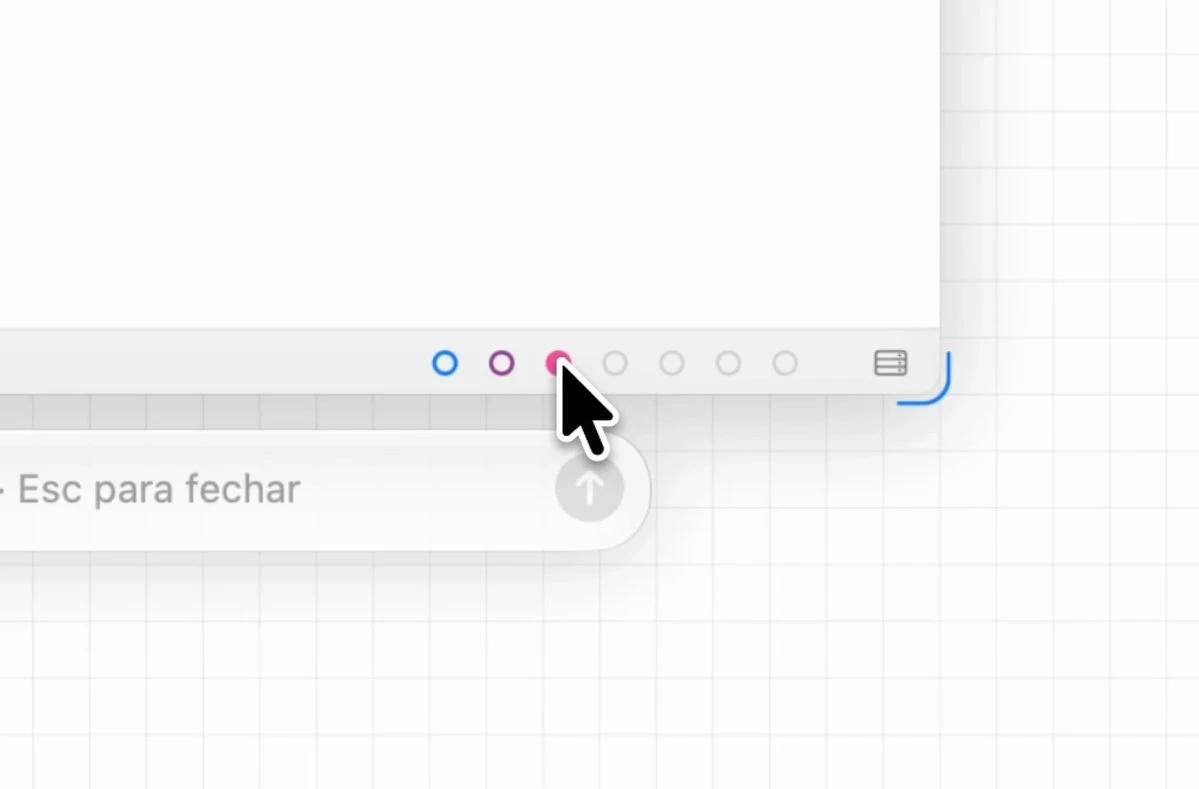
Click a dot to switch. The current thread is a filled dot, threads holding messages are colored rings, and empty ones are neutral. The dots lock while a turn is open, so an answer can never land in the wrong thread. Right-click one for Clear Thread….
The order never changes, because a color is a thread's identity, to you and to the agent alike. Every message an agent receives names the thread it came from.
A thread outlives the agent
Maestri keeps each thread's record itself, and an agent can read it back: the last few turns, a whole week, or a specific range of dates. That is what makes a thread survive a restart, a compacted context, or a brand new agent process.
You can quit the CLI running behind the chat, start a different one in its place, and carry on in the same thread. Ask it to catch up on the conversation and it reads the record, no re-explaining from you.
Attachments
Agents can hand you files, not just text. A reply arrives with a card per file, showing its icon, name and size.
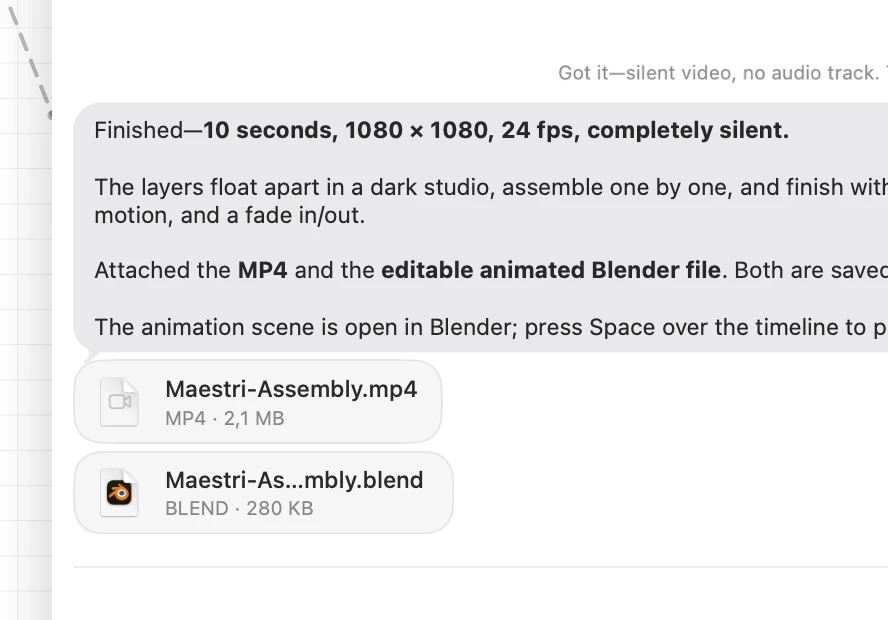
Click a card to open the file, or drag it out onto the canvas, into the file tree, or anywhere else that takes a file. Right-click for Open, Open With, Preview, Show in Finder, Copy, Copy Path, and Delete.
The files live in Maestri's own storage, so they travel with the terminal, survive a relaunch, and show up in Maestri Remote on your phone alongside the thread they arrived in.
What a reply can hold
Replies are rendered markdown, drawn by the same engine that draws notes:
- Tables that copy as real tables, not a row of pipes.
- Code blocks with syntax highlighting and a copy button.
- Mermaid diagrams, drawn natively in the conversation's own font and colors. Right-click for Copy Mermaid Source or Copy as Image.
Select any passage and choose Quote to drop it into the composer as a blockquote, which is the quickest way to answer one specific line. CtrlF searches the conversation, and right-clicking a message offers Copy, Quote and Delete Message.
To empty a conversation, right-click the terminal node and choose Clear Chat History…. That clears Maestri's transcript and its retained attachments, not the provider's own memory.
On your phone
The thread is live in Maestri Remote over your own connection: the same seven threads, the same attachments, the same history, with the shell a tap away. Anything you send from the phone lands in the conversation on your Mac, and the reply arrives in both.