Maestro Mode
Maestro Mode promotes a terminal from a regular agent into a manager — one that can recruit new agents to your canvas, assign them roles, wire them into the right notes, and dismiss them when their work is done.
It turns a single lead agent into the entry point of an entire team, assembled on demand.
Enabling Maestro
Maestro is a per-terminal setting. To enable it:
- Open the terminal creation sheet (or right-click an existing terminal → Edit Terminal).
- Tick the Maestro checkbox in the Details tab.
- Save.
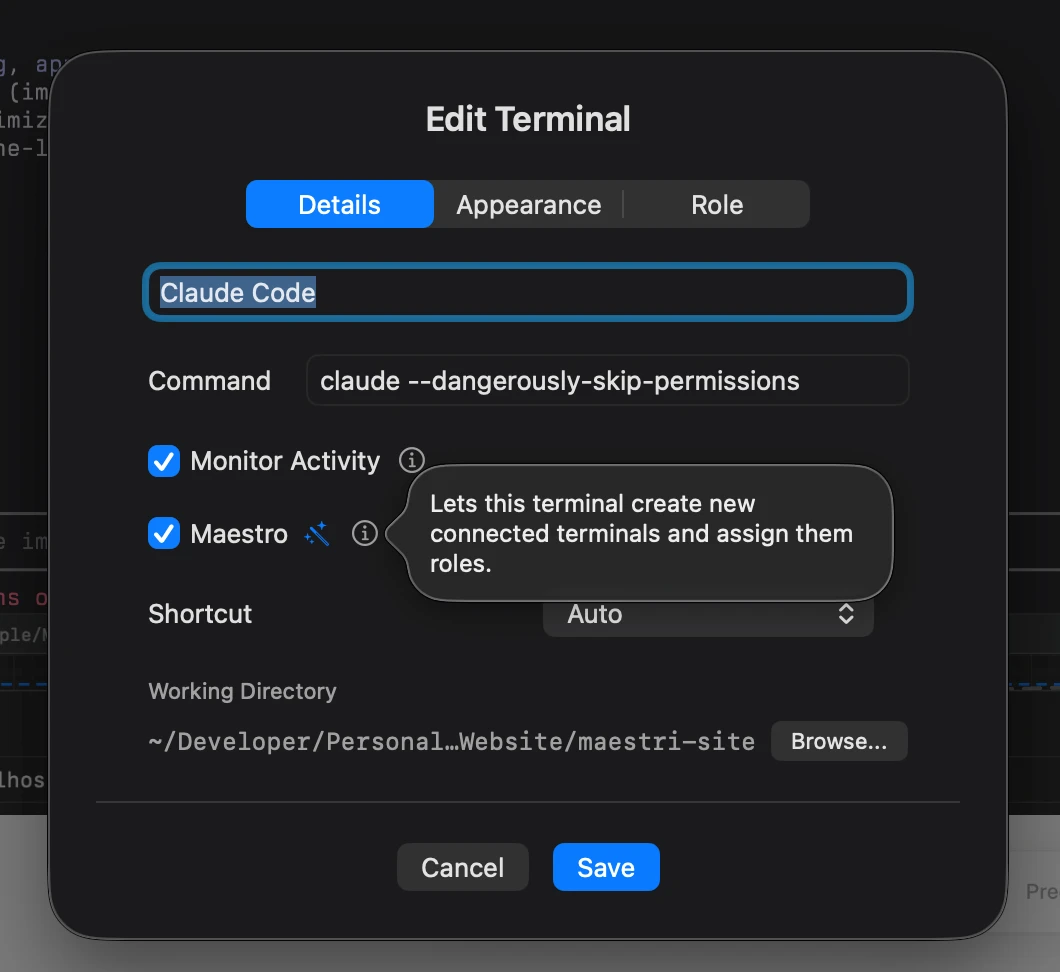
Once enabled, the agent inside the terminal gains access to the manager skill, which exposes commands for managing its own team.
What a Maestro can do
A Maestro can act on the canvas the way you would, but through the agent itself:
- Recruit — Spawn a new connected terminal below itself, with whatever agent and role makes sense for the task. Recruits land on the Maestro's own floor by default, but you can send one to a specific floor to drop it straight into an isolated environment, or into another workspace entirely.
- Connect — Wire a new recruit to any of the Maestro's existing connected notes, so they share the same source of truth.
- Reassign roles & tweak prompts — Swap a recruit's role on the fly, or edit the role's instructions directly. The canvas position, name, and connections are preserved — only the agent process restarts with the new instructions.
- Dismiss — Close a recruit's terminal once its work is done, keeping the canvas tidy.
You drive all of this through plain prompts to the Maestro, like:
"Assemble a small software factory: a Builder to ship the feature, a Reviewer to catch regressions, a Tester to write coverage, and a Doc Writer to update the changelog. Connect all of them to the spec note, then dismiss each one as it finishes."
Note
A Maestro can create, edit, reassign, and remove roles. You can still manage them yourself in Settings → Agents.
Prompting a Maestro
In Prompt Composer, mention @Maestro in the first prompt to help the agent load the /maestri-manager skill.
Provisioning workspaces and floors
A Maestro can also spin up the container for the team itself, provisioning new workspaces and new floors directly. A new workspace becomes available to the Maestro and its recruits; a new floor arrives inside the current workspace with its own isolated working tree.
Because this is gated behind Maestro permissions, a regular agent can't create workspaces or floors on its own — only a Maestro (or you) can. That keeps the canvas from filling up with stray environments while still letting a lead agent scaffold the structure it needs for a task.
Recruiting into another workspace
Name another workspace when you ask for a teammate and the recruit lands there instead of here, on its ground level or on a floor of its own. It starts in that workspace's directory and runs wherever that workspace runs, because it's that project's agent now.
The rope still reaches it. The Maestro addresses it by its name plus that workspace, and asking it for work, checking on it, and dismissing it all behave as they always did. See Across workspaces for what that wiring looks like on the canvas.
Notifying you when it needs attention
A Maestro can send a system notification, so it can ping you when it finishes a task or hits a blocker that needs your call. No babysitting required, just tell it to notify you when it's done.
Picking the agent
A Maestro can see the same agent presets you see in the terminal modal — every coding agent you've configured in Settings → Agents is available to it.
By default, a Maestro tends to recruit copies of itself: a Claude Code Maestro will spawn more Claude Code recruits, a Codex Maestro will spawn more Codex recruits, and so on. This is usually what you want — one familiar toolchain across the team.
But you can override that whenever it matters. Just tell the Maestro which agent should fill which role:
"Assemble a team where Codex is the reviewer, Claude is the builder, and OpenCode is the writer."
The Maestro will recruit each one with the matching agent preset and role. Mixed-agent teams are useful when you want to play the strengths of each tool against each other — for example, one agent's review catching what another agent's implementation missed.
Layout
Recruits are automatically placed evenly below the Maestro that spawned them. You don't need to position them by hand — the Maestro handles spacing so the team stays readable as it grows.
You can still move recruits manually like any other terminal; the auto-layout only runs at recruit time.
Sharing context through notes
Any note already connected to the Maestro can be wired into specific recruits — and into other notes too, building a chain. This isn't automatic; the Maestro creates these connections deliberately, just like you would on the canvas.
That's how you build a team that shares the same source of truth: write the brief once into a note connected to the Maestro, then ask the Maestro to connect that note to whichever recruits need it.
Recruits read and edit those notes the same way any connected agent does — see Notes and Connections.
Recruits know who they are
A recruit can see its own name and role alongside its connections, so the agent always knows what hat it's wearing and which teammates it can reach.
Tip
Pair Maestro Mode with well-defined roles in Settings → Agents. The clearer your roles, the easier it is to ask a Maestro to "recruit a Tester" or "recruit a Reviewer" and get exactly what you expect.